How do you transfer data from iPhone to iPhone

BSC Insights Admin
October 07, 2026
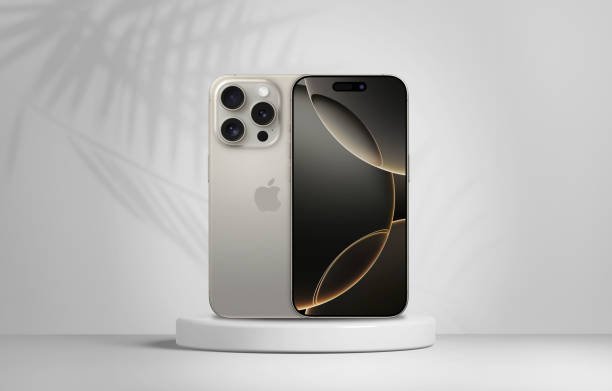
Upgrading to a new iPhone is exciting, and transferring data from your old iPhone to a new one is a crucial first step. Fortunately, Apple provides several seamless methods to migrate all your precious photos, contacts, apps, messages, and settings, ensuring a smooth transition to your new device. Whether you’re looking for a wireless solution or a wired connection, this comprehensive guide will walk you through the most effective ways to move your data with ease, making your new iPhone setup effortless.
Moving your digital life from an old device to a new one doesn't have to be daunting. With Apple's robust ecosystem, you can effortlessly move data to new iPhone models, preserving your history and preferences. This article details the primary methods for iPhone data migration, including Quick Start, iCloud Backup & Restore, and iTunes/Finder, along with tips for selective transfers and troubleshooting common issues.
Quick Start: The Easiest Wireless Transfer Method
For most users, Quick Start is the recommended and fastest method for transferring data directly from an old iPhone to a new iPhone. This feature allows you to set up a new iOS device quickly using information from your current device, and it can wirelessly transfer all your data without needing a computer or iCloud backup. It's designed for a truly easy iPhone data transfer experience when you have both devices side-by-side.
Prerequisites for Quick Start
- Both iPhones must be running iOS 11 or later.
- Ensure both devices are near each other.
- Have both iPhones connected to power, especially if data transfer is substantial, to avoid interruptions.
- Enable Bluetooth on both devices.
How to Use Quick Start for Data Transfer
- Power On Your New iPhone: Place your new iPhone near your current iPhone. The Quick Start screen will appear on your current iPhone, prompting you to set up your new device.
- Confirm Apple ID: Make sure the Apple ID displayed on your old iPhone is the one you want to use for your new device. Tap "Continue."
- Scan Animation: An animation will appear on your new iPhone. Hold your current iPhone over the new one, centering the animation in the viewfinder, similar to scanning a QR code.
- Enter Passcode: When prompted, enter your current iPhone's passcode on your new iPhone. This links the devices securely.
- Set Up Face ID/Touch ID: Follow the instructions to set up Face ID or Touch ID on your new device. You can also choose to set this up later.
- Transfer Data: You’ll then see an option to "Transfer Data from iPhone." Select this to begin the direct wireless iPhone transfer. Confirm the settings you want to transfer, like Apple Pay.
- Wait for Transfer: Keep both devices near each other and connected to power until the transfer is complete. This can take anywhere from a few minutes to over an hour, depending on the amount of data, but offers a truly seamless iPhone data transfer.
Pros and Cons of Quick Start
- Pros:
- Extremely easy and intuitive for new iPhone quick setup.
- No computer or extensive Wi-Fi required for the bulk of the transfer.
- Transfers almost everything, including app data, settings, and personal files.
- Often the fastest wireless method for direct data migration.
- Cons:
- Requires both phones to be present and sufficiently charged.
- Can still be slow for very large amounts of data, depending on wireless conditions.
iCloud Backup & Restore: Cloud-Based Convenience
If you don't have both iPhones physically together or prefer a cloud-based solution for migrating all your iPhone data, iCloud Backup & Restore is an excellent method. This allows you to back up your old iPhone to Apple's cloud service and then restore that backup onto your new device, all wirelessly. This is a popular choice for those who want to restore from iCloud on a new device later.
Prerequisites for iCloud Backup & Restore
- Strong Wi-Fi connection for both backup and restore.
- Sufficient iCloud storage space (5GB free for basic, but more is needed for larger backups). You might need to purchase additional storage.
- Both iPhones should be signed into the same Apple ID.
How to Use iCloud Backup & Restore
Part 1: Back Up Your Old iPhone to iCloud
- Connect to Wi-Fi: Ensure your old iPhone is connected to a stable Wi-Fi network.
- Go to Settings: Open the "Settings" app.
- Tap Your Name: Tap on your name at the top of the Settings screen.
- Select iCloud: Tap "iCloud."
- iCloud Backup: Scroll down and tap "iCloud Backup."
- Enable iCloud Backup: Make sure "iCloud Backup" is toggled on.
- Back Up Now: Tap "Back Up Now" and wait for the process to complete. Ensure it finishes before you proceed with setting up your new device. The time and date of the last successful backup will be shown.
Part 2: Restore from iCloud Backup on Your New iPhone
- Power On New iPhone: Turn on your new iPhone and follow the on-screen setup prompts until you reach the "Apps & Data" screen.
- Restore from iCloud Backup: Select "Restore from iCloud Backup."
- Sign In to iCloud: Enter your Apple ID and password. If you have two-factor authentication enabled, approve the sign-in.
- Choose Backup: Select the most recent backup from the list. Pay attention to the date and size of the backups.
- Complete Setup: Follow the remaining prompts to complete the setup. Your apps and data will begin downloading in the background as soon as your device is connected to Wi-Fi. This ensures your iCloud transfer iPhone is successful.
Pros and Cons of iCloud Backup & Restore
- Pros:
- Doesn't require both phones to be present simultaneously, ideal for remote setup or if your old phone is no longer accessible.
- Can restore from anywhere with Wi-Fi, offering great flexibility for cloud data transfer.
- Reliable and comprehensive backup solution for most personal data.
- Cons:
- Requires sufficient iCloud storage, which might mean paying for more space.
- Dependent on internet speed for both backup and restore, can be slow for large backups/restores.
- Some data (like specific app logins or Apple Pay info) may need manual re-entry after the restore.
iTunes/Finder Backup & Restore: The Wired & Comprehensive Method
For those who prefer a local, wired solution or have vast amounts of data, using iTunes (for Windows or macOS Mojave and earlier) or Finder (for macOS Catalina and later) is a robust option for transferring all your iPhone data. This method typically results in a faster transfer for large backups compared to cloud-based options, as it leverages your computer's storage and a direct cable connection. It's often considered the most complete form of full data transfer.
Prerequisites for iTunes/Finder Backup & Restore
- A computer (Windows PC with iTunes, or Mac with Finder/iTunes).
- A USB cable to connect your iPhone to the computer.
- Sufficient storage space on your computer for the backup (backups can be very large).
- iTunes or macOS updated to the latest version to ensure compatibility.
How to Use iTunes/Finder Backup & Restore
Part 1: Back Up Your Old iPhone to Your Computer
- Connect Old iPhone: Connect your old iPhone to your computer using a USB cable.
- Open iTunes/Finder:
- On a Mac (macOS Catalina or later): Open Finder. Your device should appear in the sidebar.
- On a Mac (macOS Mojave or earlier) or Windows PC: Open iTunes. Your device icon will appear in the top-left corner.
- Select Your Device: Click on your iPhone icon in iTunes or select your iPhone from the sidebar in Finder.
- Encrypt Backup (Highly Recommended): Under the "Backups" section, select "This Computer" and tick the box for "Encrypt local backup." Create a memorable password and keep it safe, as it's essential for restoring sensitive data. This ensures your health data, saved passwords, and HomeKit data are also backed up, making it a truly comprehensive iPhone data transfer.
- Back Up Now: Click "Back Up Now" and wait for the backup process to complete. You can check the "Latest Backup" date and time in Finder/iTunes to confirm.
Part 2: Restore from Computer Backup on Your New iPhone
- Power On New iPhone: Turn on your new iPhone and follow the on-screen setup prompts until you reach the "Apps & Data" screen.
- Restore from Mac or PC: Select "Restore from Mac or PC."
- Connect New iPhone: Connect your new iPhone to the same computer you used for the backup.
- Open iTunes/Finder:
- On a Mac: Open Finder.
- On a Windows PC: Open iTunes.
- Select Your Device: Click on your iPhone icon in iTunes or select your iPhone from the sidebar in Finder.
- Restore Backup: Click "Restore Backup." Choose the most recent backup you just created from the dropdown menu. If your backup was encrypted, you'll need to enter the password you set.
- Complete Setup: Allow the restore process to complete. Your iPhone will restart, and you can finish the remaining setup steps. Apps will then redownload from the App Store. This is an effective way to complete your iPhone upgrade data transfer.
Pros and Cons of iTunes/Finder Backup & Restore
- Pros:
- Often faster for very large data transfers due to the wired iPhone transfer connection.
- No reliance on internet speed during the core transfer (only for app downloads post-restore).
- Provides a comprehensive local iPhone backup, especially when encrypted, including sensitive data.
- Good for users with limited iCloud storage or concerns about cloud privacy.
- Cons:
- Requires a computer and a USB cable.
- Can be less convenient than wireless options if you don't always have access to a computer.
- Requires sufficient free space on your computer's hard drive.
Selective Data Transfer: Moving Specific Information
Sometimes you might not need to transfer everything, or you might want to move specific types of data outside of a full backup. Apple provides several ways to handle selective iPhone data transfer for particular content types.
Transferring Photos and Videos
- iCloud Photos: If enabled (Settings > Your Name > iCloud > Photos), your entire photo library is synced to iCloud, and it will automatically appear on your new iPhone once you sign in with your Apple ID and enable iCloud Photos. This is the most popular way to transfer photos iPhone.
- AirDrop: For a small selection of photos or videos, you can use AirDrop to wirelessly send them from your old iPhone to your new one (ensure both devices have AirDrop enabled for "Everyone" or "Contacts Only").
- Computer Transfer: Connect your old iPhone to your computer and manually import photos, then sync them to your new iPhone via Finder/iTunes or a third-party app.
Transferring Contacts
- iCloud Contacts: If enabled (Settings > Your Name > iCloud > Contacts), your contacts are synced to iCloud. Simply sign in with your Apple ID on your new iPhone, and your contacts will automatically populate. This is the easiest way to transfer contacts iPhone.
- Third-Party Apps: Some apps allow exporting contacts as a VCF file, which can then be imported to your new device, but iCloud is generally preferred.
Transferring Messages
- iCloud Messages: Enable "Messages in iCloud" on both devices (Settings > Your Name > iCloud > Messages > Sync this iPhone). Your entire message history will sync across devices, ensuring continuity.
- Full Backup: The most reliable way to ensure all messages transfer, especially if you don't use iCloud Messages, is via a full iCloud or iTunes/Finder backup and restore.
Transferring Apps and App Data
- App Store: All methods (Quick Start, iCloud, iTunes/Finder) will re-download your apps from the App Store. App data is generally transferred with the full backup.
- Individual App Sync: Some apps have their own cloud sync features (e.g., WhatsApp chat backups to iCloud/Google Drive, specific game saves) that you can use independently.
Choosing the Best Method for Your iPhone Data Transfer
With multiple effective ways to transfer data from iPhone to iPhone, selecting the ideal method depends on your specific situation, available resources, and urgency. Consider the following factors:
- Convenience & Speed: For most users with both devices present, Quick Start offers the fastest and most seamless experience for a full transfer without a computer. It's often the best way to handle new iPhone setup.
- Physical Proximity: If your old iPhone isn't available (e.g., sent in for repair, or you're setting up a device remotely), iCloud Backup & Restore is your go-to method.
- Data Volume & Internet Speed: For extremely large amounts of data or slow/unreliable internet, the iTunes/Finder wired backup can be significantly faster and more reliable than iCloud, as it minimizes dependency on network conditions for the core transfer.
- Storage Limitations: iCloud has free storage limits, so if your backup exceeds 5GB, you might need to upgrade your iCloud plan or opt for a computer backup.
- Security: Encrypting your local iTunes/Finder backup is crucial for protecting sensitive data like health information, saved passwords, and HomeKit data.
Each method provides a comprehensive solution for iPhone data migration, ensuring you don't lose any important information when upgrading. Your choice will depend on what resources are most readily available to you.
Troubleshooting Common iPhone Data Transfer Issues
While Apple has made transferring data to a new iPhone remarkably user-friendly, you might occasionally encounter hiccups. Here are some common issues and their solutions, helping you avoid iPhone transfer problems.
Slow Transfer Speeds
- Wi-Fi Network: Ensure both devices are on a fast, stable Wi-Fi network for Quick Start and iCloud transfers. Try moving closer to your router or connecting to a less congested network.
- Interference: Reduce potential Wi-Fi interference by turning off other bandwidth-heavy devices or moving away from microwaves and cordless phones.
- Cables: For iTunes/Finder, use an original or certified MFi (Made For iPhone) USB cable to ensure optimal transfer speeds. Damaged or non-certified cables can slow down or disrupt transfers.
Transfer Interruption or Failure
- Battery Life: Keep both iPhones connected to power throughout the transfer process to prevent interruptions due to low battery.
- Storage: Ensure your new iPhone has enough available storage space for all the data being transferred. If not, the transfer might fail or result in incomplete data. Check your old iPhone's used storage versus your new iPhone's total capacity.
- Software Updates: Make sure both iPhones are running the latest iOS version. Outdated software can sometimes cause compatibility issues that lead to failed iPhone transfer attempts.
- Restart Devices: A simple restart of both devices can often resolve minor glitches or temporary software conflicts.
Data Missing After Transfer
- Verify Backup: Double-check that your old iPhone's backup was completed successfully before you started the restore process on the new device. For iCloud, go to Settings > Your Name > iCloud > iCloud Backup to see the last successful backup time. For iTunes/Finder, check your computer's backup list.
- iCloud Sync: Some data, like photos or messages, might take a while to re-sync from iCloud after the initial restore, especially if "Optimize iPhone Storage" is enabled. Give it time and ensure a good internet connection.
- Apple ID: Ensure you're signed into the correct Apple ID on your new iPhone. Data linked to a different Apple ID won't transfer.
Conclusion
Transferring data from your old iPhone to a new iPhone is a straightforward process, thanks to Apple's intuitive tools. Whether you opt for the direct simplicity of Quick Start, the cloud convenience of iCloud Backup & Restore, or the robust wired reliability of iTunes/Finder, you have multiple reliable pathways to ensure all your essential information makes it safely to your new device. By following the steps outlined in this guide, you can confidently navigate your iPhone upgrade data transfer and enjoy your new iPhone with all your memories, apps, and settings intact, ready for a fresh start.
Enjoyed this read?
Share it with your friends and colleagues.