How long to set up new iPhone

BSC Insights Admin
October 07, 2026
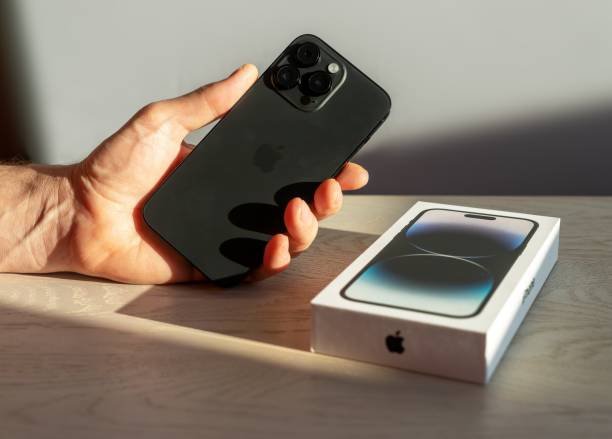
How Long Does It Really Take to Set Up a New iPhone?
Setting up a new iPhone can range from a swift 15-minute process to a more involved journey of over an hour, largely depending on how much data you're transferring and the method you choose. For a clean setup with minimal data, you might be done in under half an hour, but migrating a large amount of photos, videos, and apps from an existing device can extend the iPhone setup time considerably.
This guide will demystify the iPhone configuration process, exploring the factors that influence its duration and providing actionable steps to ensure a smooth, efficient transition to your new device. We'll cover everything from initial activation to full data migration, helping you estimate exactly how long to set up your new iPhone.
Key Factors Influencing Your iPhone Setup Time
The duration of your new iPhone setup isn't a one-size-fits-all answer. Several critical elements play a significant role in determining how quickly you'll be up and running:
1. Your Chosen Data Transfer Method
This is arguably the biggest determinant of iPhone setup time. Apple offers several ways to move your data:
- Quick Start (Direct Transfer): This method allows you to transfer data directly from your old iPhone to your new one wirelessly (or wired with a lightning to USB-C cable). It's generally one of the fastest options for comprehensive data migration.
- iCloud Backup Restore: If you've backed up your old iPhone to iCloud, you can restore your new device from that backup. The speed here depends heavily on your internet connection and the size of your backup.
- Computer Backup Restore (Finder/iTunes): Restoring from a backup stored on your Mac (via Finder) or PC (via iTunes) can be very fast, especially if done via a wired connection, as it bypasses internet speed limitations for the core data transfer.
- Setting Up as New iPhone: If you're starting fresh without transferring any data from an old device, this is the quickest setup option. You'll only configure basic settings and download apps individually.
- Migrating from Android: Transferring data from an Android device to an iPhone involves using Apple's "Move to iOS" app, which can take time depending on your data volume.
2. Amount of Data to Transfer
The more photos, videos, apps, and documents you have on your old device, the longer the data transfer to new iPhone will take. A device with 5GB of data will transfer much faster than one with 200GB. Consider doing a cleanup on your old device before starting the transfer.
3. Internet Speed (Especially for iCloud Restore & App Downloads)
A fast, stable Wi-Fi connection is crucial. If you're restoring from an iCloud backup or downloading all your apps from the App Store post-setup, a slow internet connection will significantly extend the process. Gigabit fiber connection users will see much quicker results than those on DSL or public Wi-Fi.
4. iPhone Model and Processor Speed
Newer iPhone models with faster processors and improved Wi-Fi/cellular components can process and transfer data more efficiently. While not a huge factor for short setups, it can shave off minutes during extensive data transfers.
5. User Interaction and Configuration Choices
During the setup, you'll be prompted to set up Face ID/Touch ID, create a passcode, sign in with your Apple ID, configure location services, Siri, and more. The speed at which you make these choices and complete these steps contributes to the overall duration.
Estimated Setup Times for Different Scenarios
To give you a clearer picture, here's a table outlining approximate times for various new iPhone configuration scenarios:
| Setup Scenario | Estimated Time | Key Factors |
|---|---|---|
| Set Up as New iPhone (No Data Transfer) | 15-30 minutes | Basic settings, Apple ID, Face ID/Passcode. |
| Quick Start (Direct Transfer, Small Data ~50GB) | 30-60 minutes | Wireless transfer speed, data volume, both iPhones nearby. |
| Quick Start (Direct Transfer, Large Data ~200GB+) | 1-3 hours+ | Wireless transfer speed (consider wired for faster results), significant data volume. |
| iCloud Backup Restore (Small Data ~50GB, Fast Wi-Fi) | 45-90 minutes | iCloud download speed, Wi-Fi speed, app re-download. |
| iCloud Backup Restore (Large Data ~200GB+, Average Wi-Fi) | 2-5 hours+ | iCloud download speed, Wi-Fi speed, significant app re-download. |
| Computer Backup Restore (Wired, Large Data) | 30-90 minutes | USB transfer speed, computer's read/write speed. |
| Migrate from Android (Using Move to iOS) | 45 minutes - 2 hours+ | Android device data volume, Wi-Fi speed, Android device performance. |
These are averages, and your actual estimated setup time may vary. It's always best to allocate more time than you think you'll need.
The Step-by-Step iPhone Setup Process Overview
Regardless of your chosen transfer method, the core setup flow for a new iPhone follows a general pattern:
1. Initial Activation and "Hello" Screen
- Power On: Press and hold the side button until the Apple logo appears.
- Language and Region: Select your preferred language and country/region.
- Quick Start Prompt: If you have an existing iPhone or iPad running iOS 11 or later, bring it close to your new iPhone to initiate Quick Start.
2. Data Transfer Decision
- Quick Start: If chosen, follow on-screen prompts, including authenticating with your old device's passcode and setting up Face ID/Touch ID on the new phone.
- Set Up Manually: If you skip Quick Start, you'll connect to Wi-Fi, activate your device, and then choose how to restore your data (iCloud, Computer, or Don't Transfer Apps & Data).
3. Core Configuration
- Apple ID Login: Sign in with your Apple ID. This is crucial for app downloads, iCloud services, and more.
- Face ID / Touch ID & Passcode: Set up your preferred biometric authentication and a six-digit passcode for security.
- Restore from Backup (If Applicable): If you selected iCloud or Computer Backup, this is when the bulk of your data, apps, and settings begin transferring.
- Software Updates: The device might prompt you to update to the latest iOS version.
4. App & Data Download
- If restoring from a backup, apps will begin downloading in the background. This can take significant time depending on the number and size of your apps and your internet speed.
- If setting up as new, you'll need to manually download apps from the App Store.
5. Final Touches and Post-Setup Optimization
- Review Siri settings, location services, analytics, and screen time.
- The iPhone will eventually present you with the home screen, though background downloads and syncing (e.g., photos from iCloud Photos) may continue for hours or even days depending on your data volume.
Expert Tips to Speed Up Your iPhone Setup
While some waiting is inevitable, you can significantly reduce your iPhone setup time with a few proactive steps:
1. Charge Both Devices Fully
Ensure both your old and new iPhone are at least 80% charged, or ideally, plugged into power. A low battery on either device can pause or slow down transfers.
2. Ensure a Strong, Stable Wi-Fi Connection
For iCloud restores and app downloads, a high-speed, reliable Wi-Fi network is your best friend. Avoid public Wi-Fi and opt for your home network. Consider using a 5GHz network if available for faster speeds.
3. Update Your Old iPhone's iOS First
Before you even unbox your new iPhone, ensure your old iPhone is running the latest version of iOS. This minimizes compatibility issues and can streamline the transfer process, especially with Quick Start.
4. Clean Up Your Old iPhone (Optional but Recommended)
Before backing up or transferring, delete unnecessary apps, old photos, and large videos you no longer need. A smaller data footprint means a faster transfer. This is especially useful for iCloud backup restore, as smaller backups upload and download quicker.
5. Opt for Wired Transfer Where Possible
If you have a large amount of data, using a lightning to USB-C cable for Quick Start, or restoring from a computer backup (Finder/iTunes), can be significantly faster than wireless transfers, especially for files that take up a lot of space, like large videos. Wired connections generally offer superior data transfer speeds.
6. Disable Auto-Downloads Temporarily
After the initial setup, your iPhone might try to download all your purchased apps automatically. You can temporarily disable this under Settings > App Store > Automatic Downloads to prioritize essential apps and reduce immediate network strain.
7. Prepare Your Apple ID and Passwords
Have your Apple ID and password readily available. If you use two-factor authentication, ensure you have access to a trusted device or phone number to receive verification codes promptly.
Common Setup Issues and Troubleshooting
Even with careful planning, sometimes things don't go perfectly. Here are a few common hiccups and what to do:
- Stuck on Apple Logo or Transfer Screen: Try a force restart on both devices. For most modern iPhones, quickly press and release Volume Up, then Volume Down, then press and hold the Side button until the Apple logo appears.
- Transfer Failed Message: Ensure both devices are close to each other, on a stable Wi-Fi network, and have sufficient battery. Try restarting both devices and attempting the transfer again. Sometimes, a wired Quick Start can resolve this.
- Wi-Fi Connection Issues: Reset network settings on both devices (Settings > General > Transfer or Reset iPhone > Reset > Reset Network Settings). Forget and rejoin the Wi-Fi network.
- Apple ID Login Problems: Double-check your Apple ID and password. If you've forgotten it, visit iforgot.apple.com to reset it.
- Apps Not Downloading: Ensure you're signed into your Apple ID. Check App Store settings for restrictions. Sometimes pausing and resuming downloads in the App Store queue can help.
Post-Setup Optimization for Your New iPhone
Once your main setup is complete, and you're at the home screen, there are a few more steps to optimize your experience:
- Organize Your Apps: Arrange apps into folders or on different home screens to suit your workflow.
- Review Privacy & Security Settings: Go through Settings > Privacy & Security to fine-tune location services, camera, microphone, and photo access for individual apps.
- Set Up Apple Pay: Add your credit/debit cards to Wallet for convenient contactless payments.
- Enable Find My: Ensure Find My iPhone is enabled (Settings > [Your Name] > Find My) for security in case your device is lost or stolen.
- Check for App-Specific Logins: Many apps will require you to log back in (e.g., banking apps, social media, email clients).
- Verify iCloud Sync: Confirm that your photos, contacts, calendars, and other iCloud data are syncing correctly.
Conclusion
The question of "how long to set up new iPhone" doesn't have a single, simple answer because the process is highly customizable. From a quick 15-minute new device configuration to a multi-hour data transfer to new iPhone, your experience will depend on your data volume, chosen transfer method, and internet speed. By understanding these variables and implementing our expert tips—such as charging devices, ensuring strong Wi-Fi, and performing a quick cleanup—you can significantly streamline the setup and ensure a smooth transition to your new Apple device. Always allocate ample time, be patient, and enjoy the capabilities of your brand-new iPhone!
Enjoyed this read?
Share it with your friends and colleagues.