How to allow local network access on iPhone

BSC Insights Admin
October 26, 2026
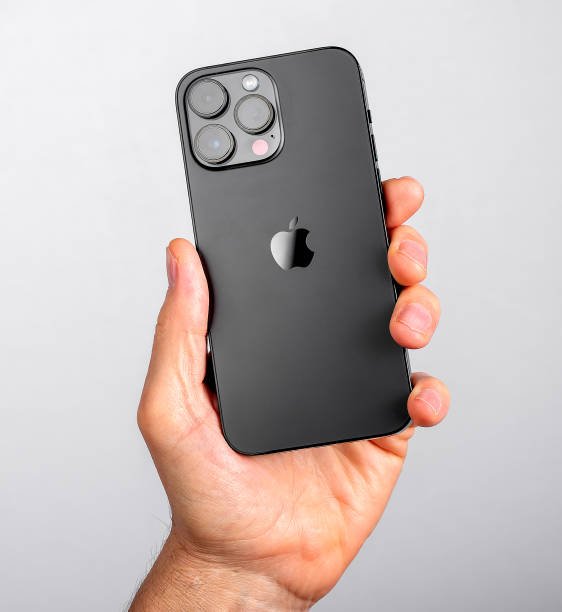
How to Allow Local Network Access on iPhone
To allow local network access on iPhone, you typically need to grant permission to specific apps through your device's Privacy & Security settings or when prompted by the app itself. This process ensures that applications can discover and communicate with other devices on your home network, which is essential for smart home gadgets, streaming devices, and local multiplayer games. Understanding these settings is crucial for managing your iPhone's connectivity and privacy effectively.
Understanding iPhone Local Network Access
The term local network access refers to an app's ability to communicate with other devices connected to the same Wi-Fi network as your iPhone. This feature is fundamental for a wide range of functionalities, from controlling smart lights and thermostats to streaming media to a smart TV or playing games with friends on the same network.
Why Your iPhone Apps Need Local Network Access
Many popular applications rely heavily on iPhone local network access to function as intended. Here are some common scenarios:
-
Smart Home Devices: Apps for smart lights (e.g., Philips Hue), smart plugs, and security cameras often need to discover and interact with these devices on your local network.
-
Media Streaming: Apps like Spotify Connect, Apple AirPlay, Chromecast, or apps for smart TVs require local network access to find and stream content to compatible devices.
-
File Sharing & Collaboration: Apps that allow you to transfer files between your iPhone and a computer (e.g., local server apps, remote desktop clients) or collaborate on documents with nearby devices depend on this access.
-
Gaming: Multiplayer games that support local co-op or competitive play need to discover other players on the same Wi-Fi.
-
Network Tools: Apps designed to scan your network, monitor devices, or manage routers require comprehensive network access iPhone capabilities.
Apple implemented strict privacy controls around local network access to give users more transparency and control over their data and device interactions. By default, apps do not have this permission unless explicitly granted, safeguarding your privacy and preventing unwanted network scanning.
Step-by-Step Guide: Granting Local Network Access to iPhone Apps
Granting an app permission to access your local network on iPhone is a straightforward process, though it can vary slightly depending on whether the app is newly installed or if you need to adjust existing settings. Here's how to do it:
Method 1: Responding to the Initial Prompt (First Launch)
When you first launch an app that requires local network access, your iPhone will typically display a prompt asking for permission. This is the most common way to enable local network for apps.
Steps:
- Launch the App: Open the application that needs local network access.
- Look for the Prompt: A pop-up message will appear, usually stating something like "[App Name] would like to find and connect to devices on your local network."
- Grant Permission: Tap "OK" or "Allow" to grant the app access. If you tap "Don't Allow," the app will not be able to interact with other local devices.
It's important to only grant this permission to apps you trust and understand why they need it. This adheres to best practices for iPhone privacy settings network management.
Method 2: Adjusting Local Network Settings Post-Installation
If you initially denied permission, or if you want to review or change the local network access for an app later, you can do so through your iPhone's Settings app. This is how you manage app permissions iPhone for network access.
Steps:
- Open Settings: Tap the "Settings" app icon on your iPhone's home screen.
- Navigate to Privacy & Security: Scroll down and tap on "Privacy & Security."
- Access Local Network: Within the Privacy & Security menu, locate and tap "Local Network."
- Toggle App Access: You will see a list of all apps that have requested or could potentially request local network access. Find the app you want to configure and toggle its switch to the "On" (green) position to allow access, or "Off" (gray) to deny it.
After adjusting the setting, it's often a good idea to close and reopen the app for the changes to take full effect.
Method 3: App-Specific Settings (Less Common, but Relevant)
While most apps rely on the iOS Privacy & Security settings, some applications might have their own internal settings related to network discovery or device connection. Always check the app's internal settings if you're still experiencing issues after enabling access in iOS settings. This might involve specific IP address configurations or port settings, especially for more technical applications.
Troubleshooting Common iPhone Local Network Issues
Even after enabling local network access on iPhone, you might encounter issues. Here's a comprehensive guide to troubleshoot common problems, helping you resolve most troubleshoot local network scenarios:
1. Double-Check App Permissions
This is the most critical first step. Go back to Settings > Privacy & Security > Local Network and ensure the toggle for the problematic app is indeed green. A simple oversight here can prevent hours of frustration. Confirm that you have explicitly granted permission to grant local network access to apps.
2. Verify Wi-Fi Connection
Ensure your iPhone is connected to the same Wi-Fi network as the other devices you're trying to communicate with. If your home network has multiple access points or separate 2.4GHz and 5GHz bands with different SSIDs, ensure all devices are on the identical segment. This is a common pitfall when connecting IoT devices iPhone users experience.
3. Restart the App
Sometimes, an app just needs a fresh start to recognize newly granted permissions or network changes. Force close the app (swipe up from the bottom of the screen on iPhones with Face ID, or double-tap the Home button on iPhones with Touch ID, then swipe the app preview up) and reopen it.
4. Restart Your iPhone
A full device restart can clear temporary software glitches that might be interfering with network functionality. Power off your iPhone, wait a few seconds, and then power it back on.
5. Restart Your Wi-Fi Router
Your router is the central hub of your local network. Restarting it can resolve many network-related problems by refreshing its connection to the internet and all connected devices. Unplug your router from power, wait for 30 seconds, then plug it back in. Allow a few minutes for it to fully boot up.
6. Update iOS and Apps
Outdated software can contain bugs that affect network connectivity. Ensure your iPhone is running the latest version of iOS by going to Settings > General > Software Update. Also, check for app updates in the App Store (open App Store, tap your profile picture, then scroll down to see pending updates) to ensure you have the most stable version of the app.
7. Check Firewall or Router Settings
For more advanced users, your router's firewall settings might be blocking certain types of local network traffic. Access your router's administration page (usually via a web browser using its IP address like 192.168.1.1) and check for settings like "AP Isolation," "Client Isolation," or specific firewall rules that might be preventing devices on your home network iPhone from communicating with each other. Disable these settings if they are active and you understand the implications for network security iPhone.
8. Reset Network Settings (Last Resort)
If all else fails, resetting your iPhone's network settings can often resolve persistent connectivity issues. Be aware that this will erase all saved Wi-Fi passwords, cellular settings, and VPN configurations. You'll need to reconnect to your Wi-Fi networks afterwards.
Steps:
- Go to Settings > General > Transfer or Reset iPhone > Reset.
- Tap "Reset Network Settings."
- Enter your passcode if prompted.
After the reset, try reconnecting to your Wi-Fi and then re-evaluate the app's local network access.
iPhone Privacy and Security: Why Local Network Access is Important
Apple's approach to local network access is rooted in its strong commitment to user privacy. By default, apps are sandboxed, meaning they have limited access to system resources and other apps' data. This includes restricted access to your iPhone network settings.
Understanding Apple's Default Restrictions
The restriction on local network access prevents apps from indiscriminately scanning your home network for other devices, which could potentially expose information about your network topology, device types, or even vulnerabilities. Imagine an untrusted app silently mapping out every device in your home; Apple's design prevents this by requiring explicit user permission.
Best Practices for Secure Local Network Access
While it's necessary to allow local network access on iPhone for many essential functions, it's equally important to manage these permissions responsibly. Here are some tips for maintaining strong network security iPhone users should follow:
-
Grant Access Judiciously: Only provide local network access to apps from trusted developers that genuinely need it for their core functionality. If an app's purpose doesn't seem to align with network discovery, be cautious.
-
Regularly Review Permissions: Periodically check the Local Network section in your iPhone's Privacy & Security settings (Settings > Privacy & Security > Local Network) to ensure that only necessary apps have access. Revoke permissions for apps you no longer use or no longer trust.
-
Keep Software Updated: Regularly update your iOS and all your apps. Updates often include critical security patches that protect against vulnerabilities that could be exploited through network access.
-
Secure Your Wi-Fi Network: Use a strong, unique password for your Wi-Fi network (WPA2 or WPA3 encryption is recommended). This prevents unauthorized devices from joining your network and potentially interacting with your iPhone or other smart devices. Consider setting up a guest network for visitors to isolate their devices from your primary network.
-
Understand App Behavior: Before granting permission, take a moment to consider why an app might need local network access. Most legitimate apps will explain this in their privacy policy or within the app's description.
Conclusion
Effectively managing how to allow local network access on iPhone is key to unlocking the full potential of your device, enabling seamless interaction with smart home devices, media streamers, and other network-connected gadgets. By understanding the straightforward process of granting permissions through iOS settings and familiarizing yourself with common troubleshooting steps, you can ensure your apps function correctly while maintaining robust privacy and security. Always prioritize granting access only to trusted applications and regularly review your settings to keep your iPhone and your local network secure.
Enjoyed this read?
Share it with your friends and colleagues.