How to allow whatsapp to access camera on iPhone

BSC Insights Admin
September 30, 2026
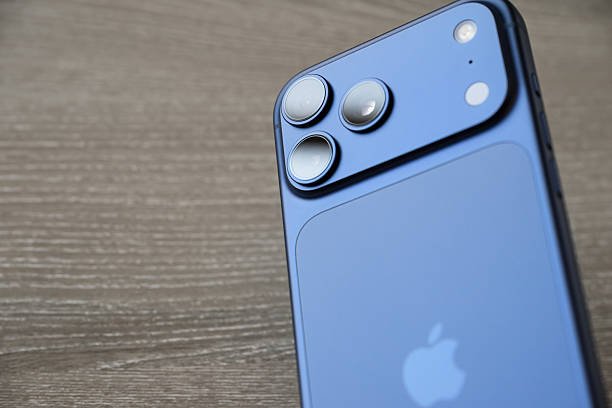
If you're finding that WhatsApp can't access your camera on your iPhone, it's typically due to specific privacy settings within iOS that restrict apps from using your device's camera or microphone without explicit permission. This guide will walk you through the precise steps to allow WhatsApp to access your iPhone camera, along with comprehensive troubleshooting tips for common issues, ensuring you can snap photos and record videos directly within the app.
Understanding iPhone Privacy and Camera Access
Apple's iOS operating system is designed with a strong emphasis on user privacy and security. By default, applications like WhatsApp do not automatically have unrestricted access to sensitive hardware components such as your camera or microphone. Instead, apps must request these permissions, and you, the user, must explicitly grant them through your iPhone's settings. This granular control prevents malicious apps from secretly recording or photographing your surroundings.
When you first install WhatsApp or attempt to use its camera function, you should receive a prompt asking for permission to access your camera. If you accidentally denied this request, or if there's been a software glitch, you'll need to manually adjust these settings. Understanding where these permissions are controlled is the first step in resolving any WhatsApp camera access issues on your iPhone.
Step-by-Step Guide: How to Allow WhatsApp to Access Camera on iPhone
Granting camera access to WhatsApp is a straightforward process that takes just a few moments within your iPhone's settings. Follow these clear steps:
- Open the Settings App: Locate and tap the gray "Settings" icon on your iPhone's home screen. It typically looks like a set of gears.
- Scroll Down to Privacy & Security: Within the Settings menu, scroll down until you find "Privacy & Security" (on older iOS versions, it might simply be "Privacy"). Tap on it.
- Access Camera Permissions: In the "Privacy & Security" menu, you'll see a list of different hardware components and data types. Tap on "Camera."
- Locate WhatsApp: You will now see a list of all applications that have requested or have been granted camera access. Scroll through this list until you find "WhatsApp."
- Enable Camera Access for WhatsApp: Next to "WhatsApp," you'll see a toggle switch. If it's gray, it means camera access is currently denied. Tap the toggle switch to turn it green. A green toggle indicates that WhatsApp now has permission to use your iPhone's camera.
- Exit Settings and Test: Once the toggle is green, you can close the Settings app. Open WhatsApp and try to use the camera function (e.g., tap the camera icon in a chat, or go to the "Status" tab and tap the camera icon). It should now be working correctly.
These steps are the primary method to resolve the issue of WhatsApp not being able to use the camera on your iPhone. If, after following these steps, you still face problems, the issue might be deeper, and you'll need to explore some troubleshooting options.
Troubleshooting: WhatsApp Camera Still Not Working on iPhone
Sometimes, simply adjusting the privacy settings isn't enough. Various factors can prevent an app from functioning correctly. Here’s a comprehensive list of troubleshooting steps to resolve persistent WhatsApp camera problems on iPhone:
1. Force Close and Reopen WhatsApp
A quick restart of the application can often resolve minor glitches. This clears the app's temporary data and reloads it from scratch.
- For iPhones with Face ID (no Home button): Swipe up from the bottom of the screen and pause in the middle. Swipe right or left to find the WhatsApp app card. Swipe up on the WhatsApp card to close it.
- For iPhones with a Home button: Double-press the Home button to bring up the app switcher. Swipe right or left to find the WhatsApp app card. Swipe up on the WhatsApp card to close it.
After force-closing, wait a few seconds, then reopen WhatsApp and test the camera again.
2. Restart Your iPhone
The classic IT solution! A full device restart can clear system-wide caches, resolve software conflicts, and refresh all running processes. This is often effective for issues that aren't specific to one app but rather a general system hiccup.
- For iPhones with Face ID: Press and hold the side button and either volume button simultaneously until the "slide to power off" slider appears. Drag the slider, then wait for your iPhone to turn off. To turn it back on, press and hold the side button until you see the Apple logo.
- For iPhones with a Home button: Press and hold the side (or top) button until the "slide to power off" slider appears. Drag the slider, then wait for your iPhone to turn off. To turn it back on, press and hold the side (or top) button until you see the Apple logo.
Once your iPhone has restarted, open WhatsApp and check if the camera access has been restored.
3. Check for WhatsApp Updates
Outdated application versions can contain bugs or compatibility issues with newer iOS versions. Ensuring your WhatsApp is up to date is crucial for optimal performance and security.
- Open the "App Store" on your iPhone.
- Tap on your profile picture or icon in the top right corner.
- Scroll down to see pending updates or use the search bar to find "WhatsApp."
- If an update is available, tap "Update" next to WhatsApp.
After updating, re-test the camera function within WhatsApp.
4. Check for iOS Updates
Similarly, an outdated iOS version can lead to conflicts with apps. Apple regularly releases updates that include bug fixes, security patches, and performance improvements. Keeping your operating system current is vital.
- Go to "Settings" > "General" > "Software Update."
- If an update is available, download and install it. Ensure your iPhone is connected to Wi-Fi and has sufficient battery charge or is connected to power.
Once your iPhone has updated and restarted, verify if WhatsApp can access the camera.
5. Review Screen Time Restrictions
If you have Screen Time enabled, especially with content and privacy restrictions, it might inadvertently block camera access for certain applications. This is a common oversight, particularly if parental controls are active.
- Go to "Settings" > "Screen Time."
- Tap "Content & Privacy Restrictions."
- Enter your Screen Time passcode if prompted.
- Tap "Allowed Apps."
- Ensure that "Camera" is enabled (green toggle). If it's not, toggle it on.
- Also, check "Privacy Restrictions" within the same "Content & Privacy Restrictions" section. Tap on "Camera" and ensure "Allow Changes" is selected. This allows individual apps to request and be granted camera access.
If any changes were made, restart WhatsApp and test the camera.
6. Ensure Sufficient iPhone Storage
While not directly related to camera access, extremely low storage on your iPhone can cause apps to malfunction or prevent them from fully utilizing hardware features. Photos and videos need space to be saved, even temporarily.
- Go to "Settings" > "General" > "iPhone Storage."
- Review the storage usage. If your device is nearly full, consider deleting unnecessary apps, photos, videos, or offloading data to iCloud to free up space.
Having at least a few GBs of free space is generally recommended for optimal iPhone performance.
7. Reset All Settings (Last Resort)
This option should be considered a last resort before reinstalling WhatsApp. Resetting all settings won't delete your data (photos, apps, contacts) but will revert all your personalized settings (Wi-Fi passwords, wallpaper, privacy settings, keyboard dictionary, location settings) back to their factory defaults. This can often fix underlying system configuration issues.
- Go to "Settings" > "General" > "Transfer or Reset iPhone."
- Tap "Reset."
- Select "Reset All Settings."
- Enter your passcode if prompted.
After the reset, you will need to reconfigure some of your iPhone settings and reconnect to Wi-Fi networks. Then, re-check WhatsApp's camera permissions under "Privacy & Security" > "Camera" and test the app.
8. Reinstall WhatsApp (With Caution)
If all else fails, a fresh installation of WhatsApp can often resolve deeply entrenched issues related to corrupt app data or permissions. However, it is absolutely critical to back up your chat history before deleting the app.
How to Back Up WhatsApp Chats:
- Open WhatsApp.
- Go to "Settings" (gear icon in the bottom right).
- Tap "Chats" > "Chat Backup."
- Tap "Back Up Now." Ensure your iCloud Drive is enabled in iPhone settings for WhatsApp to back up successfully.
How to Reinstall WhatsApp:
- Once your chat history is backed up, return to your iPhone's home screen.
- Lightly press and hold the WhatsApp icon until a context menu appears or all app icons start jiggling.
- Tap "Remove App" (or the 'X' icon if apps are jiggling), then "Delete App," and confirm.
- Restart your iPhone (optional, but recommended).
- Go to the "App Store," search for "WhatsApp Messenger," and download it again.
- Open WhatsApp, verify your phone number, and when prompted, choose "Restore Chat History."
After reinstalling and restoring your chats, you will likely be prompted again to allow camera access. Grant the permission and test the camera.
What if WhatsApp Isn't Listed Under Camera Permissions?
In rare cases, you might navigate to "Settings" > "Privacy & Security" > "Camera" and find that WhatsApp isn't listed among the apps. This usually happens if WhatsApp has never attempted to access the camera, or if the app's internal configuration has been corrupted.
The primary fix for this scenario is to simply try to use the camera within WhatsApp. Open a chat, tap the camera icon (or the '+' icon and then "Camera"), and WhatsApp should then trigger the iOS permission request. Once that request appears, grant access. If it still doesn't appear, proceeding with the "Reinstall WhatsApp" step (after backing up) is the most reliable solution.
Maintaining Optimal WhatsApp Camera Performance
Beyond troubleshooting access issues, here are some tips for a smooth experience when using WhatsApp's camera on your iPhone:
- Keep Your Lenses Clean: A simple smudge can drastically reduce photo quality.
- Good Lighting: Like any camera, WhatsApp's camera performs best in well-lit environments.
- Avoid Overheating: Extended use in hot conditions can cause performance throttling.
- Sufficient Storage: As mentioned, adequate free space prevents lag and allows seamless saving of media.
Why Camera Permissions are Essential for Your Privacy
While dealing with permission issues can be frustrating, it's important to remember why Apple implements such stringent privacy controls. These controls empower you to decide which applications can access your sensitive data and hardware. Granting camera access to apps like WhatsApp allows for legitimate functionalities such as video calls, sending photos, and capturing moments for statuses. However, it also means you are entrusting that app with the ability to use your camera. Always be mindful of the permissions you grant to any app, reinforcing the importance of managing app permissions on your iPhone.
Summary: Regain Control of Your WhatsApp Camera
Allowing WhatsApp to access your camera on an iPhone is typically a simple adjustment in your device's "Settings" under "Privacy & Security" > "Camera." By ensuring the toggle for WhatsApp is green, you should resolve most access issues. Should problems persist, a methodical approach to troubleshooting, including force-closing the app, restarting your iPhone, updating software, checking Screen Time restrictions, or even a cautious reinstallation of WhatsApp after backing up your chats, will help you restore full functionality. Apple's robust privacy features are there to protect you, and understanding how to manage them ensures a seamless and secure user experience.
Enjoyed this read?
Share it with your friends and colleagues.