How to allow zoom to access microphone on iPhone

BSC Insights Admin
September 30, 2026
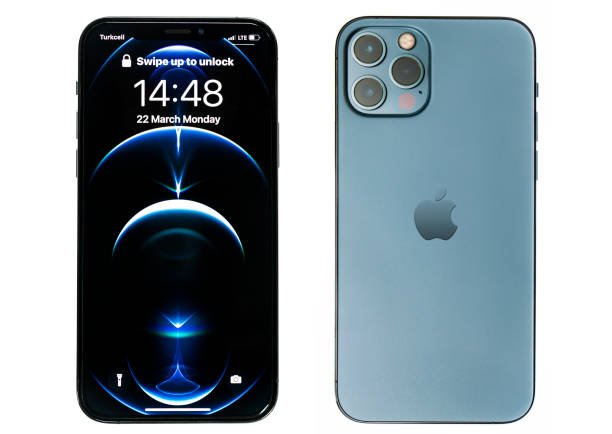
Are you struggling to get your voice heard during Zoom meetings on your iPhone? If Zoom can't access your microphone, it's often due to incorrect privacy settings on your device. This comprehensive guide will walk you through the essential steps to allow Zoom to access the microphone on your iPhone, ensuring crystal-clear communication in all your virtual calls.
To enable Zoom's microphone access, you primarily need to adjust your iPhone's privacy settings. This involves navigating to your device's Settings app, then selecting Privacy & Security, and finally granting microphone permission directly to the Zoom application. We'll also cover in-app settings and common troubleshooting steps to resolve any lingering audio issues.
Understanding Microphone Access on iPhone for Zoom
Your iPhone is designed with robust privacy features to protect your personal data, including access to your microphone. Every app that requires microphone access, such as Zoom, must explicitly request and be granted permission by you. If you initially denied this permission, or if system updates have reset some settings, Zoom might not be able to pick up your audio.
It's crucial to understand that microphone access on iOS is managed at two levels: the global iPhone privacy settings and, occasionally, within the app itself. Ensuring both are correctly configured is key to a seamless Zoom experience. Many users encounter issues because they overlook one of these critical steps, leading to frustration during important calls.
Common Reasons Zoom Can't Access Your Microphone
Before diving into the solutions, let's identify the most frequent culprits behind Zoom microphone problems on an iPhone:
- Permission Not Granted: This is the number one reason. When you first install and open Zoom, it asks for microphone access. If you tapped 'Don't Allow', it will be blocked.
- Incorrect iPhone Privacy Settings: Even if you initially allowed it, sometimes system updates or other changes can alter these permissions.
- Zoom App Settings: Occasionally, the in-app audio settings within Zoom itself might be misconfigured.
- Outdated Software: An old version of the Zoom app or an outdated iOS can lead to compatibility issues.
- Hardware Issues: While less common for access denial, a faulty microphone on your iPhone or connected headset could be the underlying cause.
Step-by-Step Guide: How to Allow Zoom to Access Microphone on iPhone
Here’s the definitive guide to granting Zoom the necessary microphone access through your iPhone's system settings. This is the most critical step to resolve most audio issues.
1. Access Your iPhone's Settings
Begin by finding and tapping the Settings icon on your iPhone's home screen. This is the grey gear-shaped icon. It's the central hub for managing all aspects of your device, including privacy and app permissions.
2. Navigate to Privacy & Security
Scroll down through the main Settings menu until you find Privacy & Security (on older iOS versions, this might simply be labeled 'Privacy'). Tap on this option. This section is where you control what information and hardware features (like your camera, photos, contacts, and microphone) apps can access.
3. Select Microphone
Within the Privacy & Security menu, you'll see a list of categories. Locate and tap on Microphone. This will display a comprehensive list of all applications installed on your iPhone that have either requested or been granted microphone access.
4. Grant Access to Zoom
On the Microphone access list, scroll down until you find Zoom. You will see a toggle switch next to the Zoom app icon. If this toggle is currently grey (meaning off), tap it to switch it to green (on). This action directly allows Zoom to access the microphone on your iPhone. Once the toggle is green, Zoom now has the necessary system-level permission to use your microphone.
Important: After enabling this setting, it's a good practice to completely close and reopen the Zoom app to ensure the changes take effect. You can do this by swiping up from the bottom of your screen (or double-tapping the home button on older iPhones) to bring up the app switcher, then swiping the Zoom app card upwards to dismiss it.
Checking In-App Zoom Audio Settings
Even after granting system-level access, it's wise to ensure Zoom's internal audio settings are also configured correctly. This can be especially helpful if you're experiencing intermittent issues or want to optimize your audio quality.
1. Before Joining a Meeting
When you're about to join a Zoom meeting, look for the option to 'Join Audio'. Often, Zoom provides a prompt to connect audio. Ensure you select 'Call using Internet Audio' or a similar option. If you're using the Zoom app, you might see an option to 'Always Mute My Microphone When Joining a Meeting'. Make sure this is unchecked if you want to speak immediately upon joining.
2. During a Meeting
Once you are in a Zoom meeting, look at the bottom left corner of your screen. You should see a microphone icon. If it's red with a slash through it, you are muted. Tap the icon to unmute yourself. If it's unmuted but no one can hear you, tap the '^' arrow next to the microphone icon (or 'More' then 'Audio') to access audio options:
- Mute/Unmute: Toggles your microphone on and off.
- Switch Audio Source: This allows you to select if you're using your iPhone's built-in microphone, a connected headset, or Bluetooth device. Ensure the correct source is selected.
- Speaker: Toggle this if you want to use your iPhone's speaker instead of a headset.
Troubleshooting Common Zoom Microphone Issues on iPhone
If you've followed the steps to enable mic Zoom iOS permissions and are still encountering problems, don't worry. Here are several effective troubleshooting steps to help you diagnose and resolve the issue.
1. Restart the Zoom App
Sometimes, apps can experience minor glitches. A quick restart can often clear these up. Force close the Zoom app (swipe up from the bottom of the screen and swipe the app card away), then reopen it.
2. Restart Your iPhone
The classic IT solution, and for good reason! Restarting your iPhone can resolve many temporary software conflicts or memory issues that might be preventing Zoom from accessing the microphone properly. Hold down the side button and either volume button until the power off slider appears, then slide to power off. Wait a few seconds, then turn it back on.
3. Check for Do Not Disturb or Silent Mode
While these modes primarily affect notifications and ringtones, it's worth checking. Ensure your iPhone isn't in a mode that might inadvertently interfere with audio input, although this is rare for microphone issues. Also, verify your ringer/silent switch on the side of your iPhone isn't set to silent.
4. Update the Zoom App
Outdated app versions often contain bugs or lack compatibility with the latest iOS. Go to the App Store, tap your profile icon, and check for pending updates. If Zoom has an update available, install it. Keeping your Zoom app updated ensures you have the latest features and bug fixes.
5. Update Your iPhone's iOS
Similarly, an outdated iOS can cause compatibility problems. Go to Settings > General > Software Update to check for and install any available iOS updates. Always back up your iPhone before performing a major iOS update.
6. Reinstall the Zoom App
If all else fails, a fresh installation can often fix persistent issues. Delete the Zoom app from your iPhone (press and hold the app icon until it wiggles, then tap the 'X' or 'Remove App'), then redownload it from the App Store. When you first open the newly installed app, pay close attention to the microphone permission prompt and ensure you tap 'Allow'. This is a powerful step to fix Zoom audio iPhone problems rooted in corrupted app data.
7. Test with Headphones or an External Microphone
To determine if the issue is with your iPhone's internal microphone or the Zoom app, try using wired headphones with a built-in mic, or a Bluetooth headset. If the microphone works perfectly with headphones, the problem might be with your iPhone's physical microphone hardware. If it still doesn't work, the issue is likely software-related (permissions, app settings).
8. Check for Physical Obstructions
Ensure that the small microphone holes on your iPhone (usually at the bottom near the charging port, and sometimes near the camera) are not blocked by a case, dirt, or lint. A simple cleaning with a soft brush or compressed air might resolve a physical obstruction.
Optimizing Your Zoom Audio Experience
Beyond simply enabling microphone access, there are ways to enhance your overall audio quality and ensure you're always heard clearly on Zoom calls. These tips help you get the best performance once you've successfully managed to allow Zoom access iPhone microphone capabilities.
Use Quality Audio Equipment
- Headphones with a Mic: Investing in good quality headphones or earbuds with an integrated microphone can significantly improve your audio clarity by reducing background noise and positioning the microphone closer to your mouth.
- Bluetooth Headsets: Wireless options offer freedom of movement, but ensure they are fully charged and properly paired with your iPhone.
Find a Quiet Environment
Even the best microphones can't completely filter out excessive background noise. Try to take your Zoom calls in a quiet room, away from distractions, loud fans, or other people talking. This simple step can dramatically improve how well others can hear you.
Understand Zoom's Audio Enhancements
Zoom offers settings to suppress background noise. While these are usually configured on desktop, some settings may carry over or be available in the mobile app's advanced audio settings. Be aware that aggressive noise suppression can sometimes make your voice sound unnatural, so test these settings if you enable them.
Maintaining Microphone Privacy on Your iPhone
Once you grant microphone access Zoom, it's good practice to understand and manage your iPhone's privacy features. This ensures you maintain control over which apps can listen in.
Regularly Review App Permissions
Periodically, go back to Settings > Privacy & Security > Microphone to review which apps have access. If you no longer use an app or don't want it to have microphone access, you can easily toggle it off. This helps in managing your digital privacy effectively.
Understand the Microphone Indicator
Your iPhone provides a clear visual indicator when an app is actively using your microphone. Look for a small orange dot (or sometimes a green dot for camera and microphone use) at the top right of your screen, near the cellular signal bars. This dot confirms that an app, like Zoom, is currently utilizing your microphone, giving you peace of mind and control.
Conclusion
Ensuring Zoom can access your microphone on your iPhone is typically a straightforward process involving your device's privacy settings. By following the steps outlined in this guide – primarily navigating to Settings > Privacy & Security > Microphone and enabling the toggle for Zoom – you can resolve most common audio issues. Remember to also check in-app settings, keep your apps and iOS updated, and troubleshoot with a restart or reinstallation if necessary. With these steps, you'll be well-equipped to enjoy seamless and clear audio communication during all your Zoom meetings from your iPhone.
Enjoyed this read?
Share it with your friends and colleagues.