How to arrange iPhone screen

BSC Insights Admin
October 26, 2026
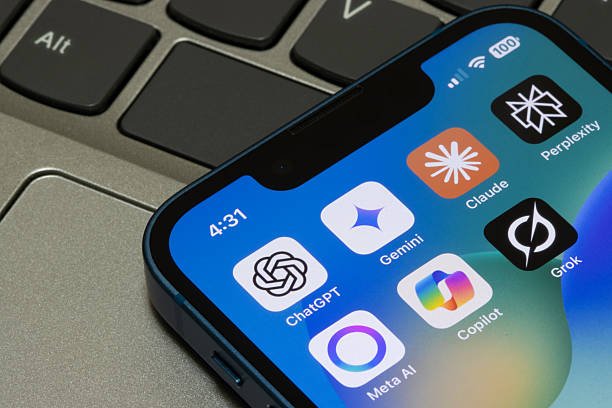
Your iPhone screen is more than just a grid of apps; it's a dynamic canvas that can significantly impact your productivity and daily interaction with your device. Learning how to arrange your iPhone screen effectively involves a combination of moving apps, creating folders, utilizing powerful widgets, and mastering the App Library to create a personalized, efficient, and aesthetically pleasing digital environment. By taking control of your home screen layout, you can reduce digital clutter, quickly access your most-used applications, and enhance your overall iPhone experience.
An optimized iPhone screen isn't just about aesthetics; it's about functionality. A cluttered screen can lead to wasted time searching for apps, increased distraction, and a less intuitive user experience. Conversely, a well-arranged screen promotes efficiency, reduces cognitive load, and allows for quicker access to the tools you need when you need them most. Whether you're aiming for minimalist elegance or maximum utility, understanding the various methods for organizing your iPhone screen is the first step towards a truly personalized device.
Understanding the Fundamentals of iPhone Screen Organization
Before diving into advanced customization, it's essential to grasp the basic components of your iPhone's interface. Your primary interaction points are the Home Screen and the App Library, each serving a distinct purpose in managing your applications.
The Home Screen: Your Personalized Dashboard
The Home Screen is where you typically find your most frequently used apps, folders, and widgets. It's fully customizable, allowing you to place icons and information exactly where you want them. You can have multiple Home Screen pages, swiping left or right to navigate between them. The bottom strip, known as the Dock, is static across all Home Screen pages and is ideal for your absolute essential apps like Phone, Messages, Safari, or Mail.
The App Library: Your Automatic Organizer
Introduced in iOS 14, the App Library is an automatically organized repository of all the apps on your iPhone, categorized by function (e.g., Productivity & Finance, Social, Utilities). It resides to the far right of all your Home Screen pages. Its purpose is to provide a clean, uncluttered way to find apps without having to scroll through countless Home Screen pages. You can search for apps directly or browse by category. Many users find that leveraging the App Library is key to a minimalist and highly functional iPhone app organization strategy.
Widgets: Dynamic Information at a Glance
Widgets are small, dynamic information displays that can be added to your Home Screen or Today View (accessible by swiping right from the first Home Screen page). They offer quick glances at information from your apps – weather forecasts, calendar events, to-do lists, music controls, and more – without needing to open the app itself. Utilizing widgets iPhone functionality is a powerful way to enhance your Home Screen's functionality and aesthetic appeal.
Basic Strategies for Arranging Your iPhone Screen
Let's start with the fundamental techniques for moving and grouping apps on your home screen.
1. Moving and Rearranging Apps
The simplest way to organize your iPhone home screen is by moving individual app icons.
- Enter Jiggle Mode: Touch and hold any app icon on your Home Screen until all the icons begin to jiggle. You'll also see a small 'x' (or minus sign) on some app icons, indicating they can be deleted.
- Drag and Drop: While in jiggle mode, tap and drag an app icon to any desired position on the current screen, to another screen, or even into a folder.
- Moving to Another Page: Drag the app to the very edge of the screen to move it to an adjacent Home Screen page.
- Exit Jiggle Mode: Press the Home button (on older iPhones) or tap 'Done' in the top-right corner (on newer iPhones) to save your arrangement.
2. Creating and Managing Folders
Folders are excellent for grouping related apps, reducing clutter, and creating a more streamlined interface. This is a core part of effective iPhone layout management.
- To Create a Folder: While in jiggle mode, drag one app icon directly on top of another. A folder will automatically be created containing both apps. iOS will suggest a name for the folder (e.g., 'Productivity', 'Social'), which you can easily change.
- Adding Apps to a Folder: Drag additional apps into an existing folder.
- Renaming a Folder: Tap on the folder to open it, then tap on the name field at the top to edit it.
- Removing Apps from a Folder: Open the folder, then drag an app out of the folder and onto the Home Screen.
- Deleting a Folder: Remove all apps from the folder. Once it's empty, the folder will disappear.
3. Deleting or Removing Apps
Regularly decluttering your apps is crucial for a clean screen.
- Delete App: In jiggle mode, tap the 'x' or minus sign on the app icon, then confirm 'Delete App'. This completely removes the app and its data from your iPhone.
- Remove from Home Screen: If you want to keep the app but just remove its icon from your Home Screen (sending it only to the App Library), tap the minus sign and choose 'Remove from Home Screen'. This is an excellent way to keep your primary pages tidy.
Advanced Customization with Widgets
Widgets offer a powerful way to enhance both the aesthetics and functionality of your custom iPhone layout.
1. Adding Widgets to Your Home Screen
Widgets can transform your plain app grid into an information-rich dashboard.
- Enter Jiggle Mode: Touch and hold any empty space on your Home Screen or an app icon until apps jiggle.
- Open Widget Gallery: Tap the '+' button in the top-left corner of the screen.
- Browse and Select: Scroll through the available widgets, search for a specific app, or view suggested widgets. Each widget often comes in small, medium, and large sizes.
- Add Widget: Select your desired widget size and tap 'Add Widget'. It will appear on your Home Screen.
- Arrange: Drag the widget to your preferred location.
- Exit Jiggle Mode: Tap 'Done' or press the Home button.
2. Creating Smart Stacks
Smart Stacks are a brilliant feature for maximizing widget space, allowing you to stack multiple widgets on top of each other and swipe through them.
- Automatic Smart Stack: When in the widget gallery, you'll often see a 'Smart Stack' option, which iOS automatically curates based on your usage.
- Manual Smart Stack: Drag one widget on top of another of the same size. This will create a stack.
- Customizing a Stack: Tap and hold a Smart Stack (in jiggle mode) and tap 'Edit Stack'. Here you can rearrange widgets within the stack, remove them, or turn on 'Smart Rotate' (which allows iOS to automatically show the most relevant widget based on time, location, or activity).
3. Customizing Widget Content
Many widgets allow you to configure what information they display.
- Edit Widget: While in jiggle mode, tap on the widget you wish to customize. A small pop-up menu will appear, giving you options specific to that widget (e.g., for a Weather widget, you might choose which city to display; for a Calendar widget, which calendar to show).
Leveraging the App Library for a Minimalist Screen
For those who prefer a clean Home Screen, the App Library is your best friend. It streamlines iPhone app management by automatically categorizing all your installed applications.
1. Accessing and Navigating the App Library
Simply swipe left past your last Home Screen page to reach the App Library. Apps are sorted into categories like 'Suggestions', 'Recently Added', 'Utilities', 'Social', 'Entertainment', etc. You can search for an app using the search bar at the top or tap into any category to see all its contents.
2. Hiding Home Screen Pages
To reduce clutter and rely more on the App Library, you can hide entire Home Screen pages without deleting the apps on them.
- Enter Jiggle Mode: Touch and hold an empty space on your Home Screen until apps jiggle.
- Tap Page Dots: At the bottom of the screen, tap the row of dots that represent your Home Screen pages.
- Hide Pages: Uncheck the circle beneath any page you wish to hide. The apps on that page will remain on your iPhone and be accessible via the App Library or Search.
- Restore Pages: To bring a page back, simply re-check its circle.
Productivity Hacks for a Streamlined Screen
Beyond basic arrangement, several techniques can help you optimize your iPhone home screen for peak productivity.
1. The Dock Optimization
The Dock is prime real estate. Fill it with your four most essential apps – the ones you use multiple times a day, regardless of context (e.g., Phone, Messages, Browser, Camera). This ensures they are always just a tap away.
2. Utilizing Focus Modes (formerly Do Not Disturb)
Focus Modes (iOS 15 and later) allow you to tailor your Home Screen pages to specific activities. For example, you can have a 'Work' Focus that shows only work-related apps and widgets, and a 'Personal' Focus that shows entertainment and communication apps.
- Create a Focus: Go to Settings > Focus.
- Customize Home Screen: Within each Focus, you can choose which Home Screen pages are visible when that Focus is active. This enables dynamic iPhone screen customization based on your current needs.
3. One-Handed Reachability
For larger iPhones, arranging your most-used apps at the bottom of the screen, or enabling Reachability (Settings > Accessibility > Touch > Reachability), can make one-handed use much easier. This is a practical aspect of creative iPhone setup for daily use.
Creative Arrangement Ideas and Themes
Beyond functionality, your iPhone screen can reflect your personal style.
1. Thematic Grouping
Instead of just 'Social', create folders like 'Connect' (messaging, social media), 'Create' (photo editing, notes), 'Learn' (e-books, podcasts), or 'Wellness' (fitness trackers, meditation apps).
2. Color-Coding
Some users arrange apps by icon color, creating visually appealing gradients or blocks of color on their screens. While not directly supported by iOS, custom icons (via Shortcuts) or careful app placement can achieve this effect.
3. Row or Column Based Organization
You might place all communication apps in the top row, productivity in the second, and entertainment in the third. Or perhaps a column for 'quick launch' apps on the left, and folders on the right.
4. The Minimalist Approach
Keep only essential widgets and a handful of core apps on your first Home Screen page. Hide all other pages and rely heavily on the App Library and Spotlight Search (swipe down from the middle of any Home Screen page) to find apps. This is a popular method for decluttering iPhone screens.
Maintenance and Review: Keeping Your Screen Optimized
An organized iPhone screen isn't a one-time setup; it requires periodic review and maintenance.
1. Regular Decluttering
Once a month, take a few minutes to scroll through your apps and folders. Delete apps you no longer use, or move less frequently used ones to the App Library only. This helps maintain a clean and efficient digital space.
2. Reviewing App Usage
Use 'Screen Time' (Settings > Screen Time > See All Activity) to identify which apps you use most frequently. This data can inform your organization strategy, ensuring your most vital apps are always easily accessible.
Comparing iPhone Screen Organization Methods
To help you choose the best approach for your needs, here's a comparison of common organization methods:
| Method | Description | Pros | Cons |
|---|---|---|---|
| Manual App Arrangement | Dragging apps and folders to specific locations. | Complete control, highly personal; ideal for specific workflows. | Time-consuming to set up and maintain; can lead to clutter if not managed. |
| Folders & Dock Use | Grouping related apps into folders; placing essentials in the Dock. | Reduces visible clutter; easy access to key apps; improves iPhone app organization. | Folders can become deep and hard to navigate if too many apps are inside. |
| Widgets & Smart Stacks | Adding dynamic information blocks to Home Screen; stacking widgets. | Quick info at a glance; aesthetic appeal; maximizes screen utility; great for custom iPhone layout. | Can take up significant screen real estate; some widgets offer limited custom options. |
| App Library Focused | Minimizing Home Screen pages and relying on App Library for all apps. | Extremely clean Home Screen; automatic categorization; easy search; ideal for decluttering iPhone. | Less visual customization; requires habit of swiping or searching for apps. |
| Focus Mode Integration | Creating custom Home Screens for different activities (Work, Personal, Sleep). | Dynamically optimizes screen for current task; reduces distractions; highly efficient productivity iPhone screen. | Requires initial setup; remembering to switch Focus modes. |
Conclusion
Mastering how to arrange your iPhone screen is a fundamental step towards maximizing your device's potential and enhancing your daily digital life. By strategically utilizing app movement, folders, dynamic widgets, and the intelligent App Library, you can create a personalized interface that not only looks great but also boosts your productivity and reduces digital friction. Experiment with different strategies, find what works best for your workflow and aesthetic preferences, and remember that an optimized screen is an evolving project. A well-organized iPhone screen empowers you to navigate your digital world with efficiency, clarity, and peace of mind.
Enjoyed this read?
Share it with your friends and colleagues.