How to automatically organize your apps on iPhone

BSC Insights Admin
September 30, 2026
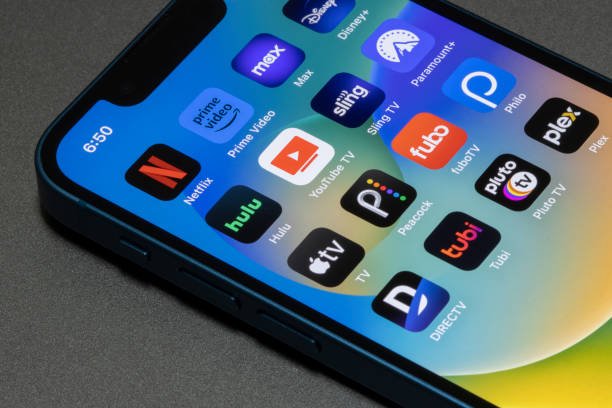
Tired of sifting through countless app icons to find what you need? Learning how to automatically organize your apps on iPhone can transform your digital life, turning a chaotic home screen into a streamlined, efficient workspace. While Apple's iOS doesn't offer a single 'auto-organize' button that sorts all your apps into custom folders, it provides powerful built-in features like the App Library, intelligent suggestions, and various customization options that, when used together, create a seamless, automatically managed app experience.
This comprehensive guide will walk you through leveraging these native iOS functionalities to achieve an effortlessly tidy and functional iPhone. From understanding the core principles of the App Library to implementing smart strategies with widgets and Focus Modes, you'll discover how to minimize clutter, enhance accessibility, and boost your overall productivity.
Why Automatic App Organization Matters on iPhone
A disorganized iPhone isn't just an aesthetic problem; it's a productivity killer. Every second spent searching for an app adds up, contributing to digital fatigue. Implementing an effective system for iPhone app organization brings significant benefits that extend beyond a clean look.
Boost Productivity
When your apps are logically arranged, whether through Apple's automatic categorizations or your own smart setups, finding what you need becomes instantaneous. This reduction in cognitive load allows you to jump straight into tasks, minimizing distractions and enhancing your focus. A well-organized phone empowers you to be more efficient, whether you're responding to emails, capturing a quick thought, or launching your favorite creative tool.
Reduce Digital Clutter
Just like a cluttered physical workspace can be overwhelming, a cluttered digital one can cause stress. Seeing dozens of app icons spread across multiple pages can feel chaotic. Automatic organization techniques, particularly those involving the App Library, help to significantly declutter iPhone home screen pages, creating a sense of calm and control over your device. This minimal approach reduces visual noise and makes your iPhone feel more manageable.
Enhance User Experience
Ultimately, a well-organized iPhone is simply more pleasant to use. Navigating your device should be intuitive and enjoyable, not a chore. By utilizing the built-in organizational tools, you optimize the interaction with your device, making every tap and swipe feel purposeful. This improved user experience makes your iPhone a more powerful and less frustrating companion.
The Core of iPhone's Automatic Organization: The App Library
Introduced with iOS 14, the App Library is the cornerstone of Apple's approach to automatic app sorting. It's a dedicated space beyond your Home Screens that intelligently categorizes all your installed applications, making them easier to find and manage without manual effort.
Understanding App Library Categories
The App Library automatically groups your apps into smart categories such as 'Suggestions,' 'Recently Added,' 'Social,' 'Productivity & Finance,' 'Utilities,' 'Entertainment,' 'Creativity,' and more. These categories are dynamically generated and updated by iOS based on your usage patterns and app types. For example, all your social media apps will automatically appear together in the 'Social' category, regardless of where they might have been placed on your Home Screen.
Accessing and Using the App Library
Accessing the App Library is simple: just swipe left past all your Home Screen pages. You'll arrive at a single, scrollable view displaying all your app categories. Each category shows three large app icons and a smaller group of four. Tapping one of the large icons launches that app, while tapping the smaller group opens the entire category, allowing you to see all apps within it. You can also use the search bar at the top of the App Library to quickly find any app by name, a truly efficient way to access even rarely used apps.
Hiding Apps from the Home Screen
One of the most powerful features integrated with the App Library is the ability to remove apps from your Home Screen without deleting them entirely. This is crucial for achieving a clean, minimalist Home Screen while retaining full access to all your apps via the App Library. To remove an app from the Home Screen:
- Long-press on an app icon on your Home Screen.
- Tap 'Remove App'.
- Choose 'Remove from Home Screen' (instead of 'Delete App').
The app will then reside solely in your App Library, keeping your visible Home Screen uncluttered. You can also configure new app downloads to go directly to the App Library by default: Go to Settings > Home Screen > New App Downloads and select 'App Library Only'.
Beyond App Library: Smart Strategies for a Tidy Home Screen
While the App Library handles automatic categorization, you can employ several iOS app management strategies to make your primary Home Screens feel equally organized and efficient. These methods allow you to combine the automated power of iOS with thoughtful personal customization.
Creating Custom Folders with Purpose
Even with the App Library, custom folders remain invaluable for grouping related apps on your Home Screens. The trick is to create them with a clear purpose and avoid 'junk drawer' folders. Think about:
- Function: 'Productivity Tools,' 'Entertainment,' 'Health & Fitness.'
- Context: 'Work Apps,' 'Travel Essentials.'
- Usage Frequency: A folder for 'Less Used' apps on a secondary page.
To create a folder, simply drag one app icon onto another. Name your folders clearly and concisely to instantly convey their contents. This thoughtful approach to folder creation acts as a manual yet highly effective form of smart app organization.
Utilizing Widgets for Quick Access and Information
Widgets provide glanceable information and quick access to app functionalities directly from your Home Screen. Instead of opening an app to check the weather, your calendar, or to-do list, a widget can display this data immediately. Apple's Smart Stacks are particularly powerful, automatically rotating through relevant widgets based on time, location, or activity. By strategically placing widgets, you can reduce the number of app icons needed on your Home Screen, effectively 'organizing' access to information.
Employing Focus Modes for Contextual App Display
Focus Modes, introduced in iOS 15, are arguably one of the most powerful tools for 'automatic' context-specific organization. You can customize different Home Screen pages to appear only when a specific Focus Mode is active. For example:
- Create a 'Work' Focus Mode that only shows a Home Screen page with work-related apps and widgets.
- Create a 'Personal' Focus Mode that displays a different set of apps for your leisure time.
- Set a 'Reading' Focus Mode that clears your Home Screen entirely, leaving only your e-reader app.
These modes can be activated manually, on a schedule, or based on location, allowing your iPhone's Home Screen to automatically adapt to your current activity and present only the most relevant apps. This is true contextual app organization.
Arranging Home Screen Pages Strategically
Think of your Home Screens as a hierarchy of importance. Your first page should contain your most frequently used apps and essential widgets. Subsequent pages can house less critical apps, perhaps organized into folders. For ultimate minimalism, consider having only one primary Home Screen page and relying heavily on the App Library for everything else. You can easily hide entire Home Screen pages by long-pressing on a blank area of the Home Screen, tapping the dots at the bottom, and unchecking the pages you wish to conceal.
Using Siri Suggestions for Smart App Access
iOS intelligently tracks your app usage and can provide Siri Suggestions based on your routine. These suggestions can appear in the App Library, in a dedicated Siri Suggestions widget, or even when you pull down on your Home Screen to access Spotlight Search. By learning your habits, Siri can effectively 'organize' access to the apps you're most likely to need at any given moment, making them feel automatically accessible without you having to locate them manually.
Step-by-Step Guide: Automating Your iPhone App Organization
Ready to transform your iPhone's app chaos into order? Follow these steps to implement an effective, largely automatic app organization system.
Step 1: Declutter Unused Apps
The first and most crucial step is to get rid of what you don't need. Go through your apps page by page (or scroll through the App Library) and delete any apps you haven't used in months or no longer require. Less clutter means less to organize. You can also offload unused apps, which frees up storage without deleting app data:
- Go to Settings > General > iPhone Storage.
- Review the list of apps and 'Offload App' for those you rarely use but want to keep data for.
Step 2: Utilize the App Library Fully
Make the App Library your default destination for new downloads. Go to Settings > Home Screen > New App Downloads and select 'App Library Only'. This prevents new apps from cluttering your Home Screens automatically. Embrace the App Library as your primary repository for all apps, relying on its automatic categorization.
Step 3: Configure Home Screen Pages for Minimalism
Decide how many Home Screen pages you truly need. For many, one or two is ideal. Remove all but your most essential apps from these pages, sending the rest to the App Library. To hide entire pages:
- Long-press a blank area on your Home Screen until icons jiggle.
- Tap the row of dots above the dock.
- Uncheck the pages you wish to hide.
- Tap 'Done' or the blank area to exit jiggle mode.
Step 4: Master Custom Folders for Strategic Grouping
On your remaining Home Screen pages, create custom folders for apps you use together regularly. For example, a 'Communicate' folder for messaging apps, 'Finance' for banking, and 'Media' for streaming. Limit the number of apps per folder to ensure easy scanning, ideally no more than 9-12 apps.
Step 5: Integrate Widgets and Focus Modes for Contextual Access
Place relevant widgets on your primary Home Screen for quick information. Experiment with Smart Stacks to consolidate multiple widgets. Then, set up Focus Modes (e.g., 'Work,' 'Personal,' 'Fitness') and link them to specific, customized Home Screen pages. This powerful combination allows your iPhone to adapt its visible app layout 'automatically' based on your current activity.
Advanced Tips for a Seamlessly Organized iPhone
Once you've mastered the basics, consider these advanced strategies to push your iPhone app organization to the next level.
The "Blank Page" Strategy
For the ultimate minimalist approach, dedicate your first Home Screen page to just your dock and a few essential widgets (like a Smart Stack or calendar). All other apps are accessed via the App Library or Spotlight Search. This creates a visually serene entry point to your iPhone and significantly reduces distractions.
App Icon Customization for Aesthetic Organization
While not strictly 'automatic,' using the Shortcuts app to create custom app icons can enhance visual organization and make your Home Screen more appealing. You can use consistent color schemes for certain app types (e.g., blue for productivity, green for health), making apps instantly recognizable by their visual style rather than just their icon. This adds a layer of personalization that supports your organizational system.
Resetting Home Screen Layout for a Fresh Start
If your Home Screens are simply beyond repair, iOS offers a nuclear option: resetting your Home Screen layout. Go to Settings > General > Transfer or Reset iPhone > Reset > Reset Home Screen Layout. This will revert all your apps to their factory default layout, placing all Apple apps on the first page and all third-party apps alphabetically on subsequent pages. It's a great way to get a clean slate and then re-implement your automatic organization strategy from scratch.
Common Pitfalls and How to Avoid Them
Even with powerful tools, it's easy to fall into traps that undermine your organizational efforts. Avoid these common mistakes:
- Over-organizing: Creating too many folders, or folders within folders, can be just as confusing as no organization. Keep it simple and intuitive.
- Ignoring the App Library: Many users don't fully embrace the App Library, leaving all apps on Home Screens. This defeats the purpose of Apple's primary automatic sorting tool.
- Inconsistent Folder Naming: Vague or inconsistent folder names lead to confusion. Be clear and direct with your labels.
- Neglecting Maintenance: App organization isn't a one-time task. Periodically review your setup, delete unused apps, and adjust folders or Focus Modes as your needs change.
Conclusion
Mastering how to automatically organize your apps on iPhone is about more than just a tidy screen; it's about reclaiming control over your digital environment and enhancing your daily productivity. By fully utilizing Apple's ingenious App Library, strategically leveraging widgets and Focus Modes, and adopting smart manual folder practices, you can transform your iPhone from a chaotic collection of icons into a highly efficient and personalized tool. Embrace these strategies to enjoy a streamlined, stress-free mobile experience where every app is exactly where you expect it to be.
Enjoyed this read?
Share it with your friends and colleagues.