How to change iPhone video speed

BSC Insights Admin
September 30, 2026
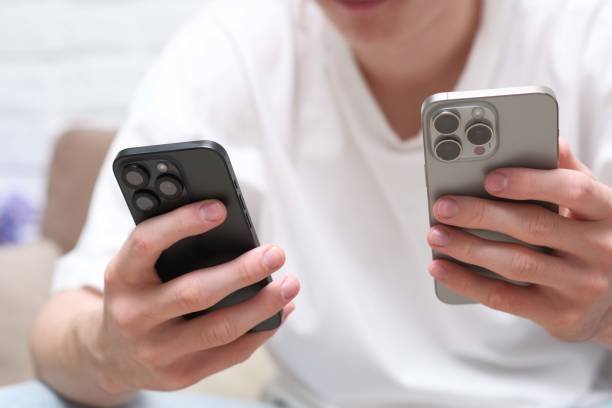
How to Change iPhone Video Speed: A Comprehensive Guide
Changing your iPhone video speed allows you to create dynamic and engaging content, whether you want to emphasize a moment with a dramatic slow-motion effect or accelerate footage for a quick, impactful recap. You can slow down iPhone video or speed up iPhone video using a combination of Apple's native apps like Photos and iMovie, as well as a variety of powerful third-party video editing applications available on the App Store.
Mastering iPhone video editing is an essential skill for content creators, casual users, and anyone looking to enhance their smartphone footage. This guide will walk you through the various methods, tools, and tips to effectively adjust video playback speed directly from your device, transforming your ordinary clips into extraordinary visual stories.
Understanding Video Speed: Frame Rates and Their Impact
Before diving into the how-to, it's crucial to understand the basics of video frame rates, as they directly impact the quality and flexibility of speed changes. Videos are essentially a series of still images, or frames, played in rapid succession. The speed at which these frames are captured and played back is measured in frames per second (fps).
- Standard Frame Rates (30fps, 24fps): Most cinematic videos are shot at 24fps, while 30fps is common for TV broadcasts and general purpose recording. Videos shot at these rates offer limited flexibility for slowing down without appearing choppy.
- High Frame Rates (60fps, 120fps, 240fps): Modern iPhones can record at higher frame rates (e.g., 60fps for smoother playback, and 120fps or 240fps specifically for slow-motion video). Recording at a higher frame rate captures more individual frames per second, providing more data that can be stretched out during playback to create genuinely smooth slow-motion without loss of quality.
For the best results when planning to slow down video on iPhone, always try to record your initial footage at the highest available frame rate (e.g., 1080p at 120fps or 240fps) within your iPhone's camera settings. This ensures you have ample data to work with when adjusting the video speed controller iPhone apps provide.
Changing Video Speed with the Native Photos App
The Photos app, pre-installed on every iPhone, offers basic but effective tools for adjusting the speed of videos, particularly those recorded in Slo-Mo mode. While it doesn't allow for universal speed adjustments on regular videos, it's perfect for fine-tuning your slow-motion iPhone video clips.
Adjusting Slo-Mo Video Speed in the Photos App
If you've recorded a video using your iPhone's dedicated Slo-Mo mode, the Photos app allows you to define which segments of the video play in slow motion and which play at normal speed. This is a simple and intuitive way to add dramatic emphasis.
- Open the Photos App: Locate and tap the Photos app icon on your home screen.
- Select Your Slo-Mo Video: Navigate to the video you wish to edit. You can find Slo-Mo videos in your “Slo-mo” album or by browsing your main library.
- Tap “Edit”: In the top-right corner of the screen, tap the “Edit” button. This will open the video editing interface.
- Locate the Speed Bar: At the bottom of the screen, beneath the video timeline, you’ll see a series of vertical lines. These lines represent the speed of different segments of your video. The closely spaced lines indicate normal speed, while the widely spaced lines denote the slow-motion section.
- Adjust the Slo-Mo Range: Drag the two vertical bars (called “range sliders”) inward or outward to define the start and end points of the slow-motion effect. Everything between these two bars will play in slow motion, while the segments outside will play at normal speed.
- Preview and Save: Tap the play button to preview your changes. Once you’re satisfied with the new speed segments, tap “Done” in the bottom-right corner to save your edited video. You can choose to “Save Video” (overwriting the original) or “Save Video as New Clip” (keeping the original and saving an edited version).
This method is fantastic for quickly refining iPhone slo-mo videos but remember, it only works for videos originally shot in Slo-Mo mode.
Changing Video Speed with iMovie for iPhone
For more comprehensive video speed control on iPhone, especially for regular videos not shot in Slo-Mo, Apple's free iMovie app is your go-to solution. iMovie offers precise control over video segments, allowing you to speed up video on iPhone or slow down video on iPhone with ease.
Getting Started with iMovie
If you don't have iMovie, download it for free from the App Store. Once installed, launch the app.
Step-by-Step: Changing Video Speed in iMovie
- Create a New Project: On the iMovie home screen, tap “+ Create Project” and then select “Movie.”
- Import Your Video: Browse your Photos library, select the video you want to edit, and tap “Create Movie” at the bottom of the screen. Your video will be added to the timeline.
- Select the Video Clip: Tap on the video clip in the timeline to select it. A yellow outline will appear around the clip, and editing options will appear at the bottom of the screen.
- Access the Speed Tool: Among the editing options, tap the “Speed” icon, which looks like a speedometer or a small clock.
- Adjust the Speed: A slider will appear above the timeline.
- To Slow Down: Drag the slider to the left, towards the “Turtle” icon. You can choose speeds like 1/2x, 1/4x, or even 1/8x for extreme slow motion.
- To Speed Up: Drag the slider to the right, towards the “Rabbit” icon. You can accelerate your video to 2x, 4x, or even 8x its original speed.
- Segment Speed Adjustment: iMovie also allows you to change the speed of specific sections of your video.
- Tap “Add” above the slider to create a new speed segment.
- Drag the yellow handles on the timeline to define the start and end of this segment.
- Adjust the speed slider for that specific segment independently. This is excellent for creating a dramatic pause or a sudden burst of action within a single clip.
- Preserve Pitch (Optional): Below the speed slider, you’ll see “Pitch.” By default, iMovie attempts to preserve the audio pitch when you change video speed, preventing voices from sounding like chipmunks or monsters. Toggle this off if you want the classic high-pitched fast-forward or low-pitched slow-mo audio effect.
- Preview and Export: Play your video to see the effects of your speed adjustments. Once satisfied, tap “Done” in the top-left corner. Then tap the “Share” icon (a box with an arrow pointing up) at the bottom and choose “Save Video” to export your edited clip to your Photos library.
iMovie is a powerful tool for editing video speed on iPhone, offering more control than the Photos app and serving as a great stepping stone for more advanced editing.
Advanced Video Speed Control with Third-Party Apps
While Apple’s native tools are excellent for basic adjustments, a plethora of third-party apps provide more granular control, professional features, and creative effects for iPhone video speed editing. These apps are often favored by serious mobile content creators due to their advanced capabilities.
Popular Third-Party Video Editing Apps for iPhone
- CapCut: A highly popular free app known for its user-friendly interface and robust features, including precise speed curves, slow-motion effects, and various transitions. It's excellent for social media content.
- InShot: Another widely used app that offers intuitive speed adjustment tools, including a speed ramp feature for smooth transitions between speeds. It also provides a comprehensive suite of editing options.
- KineMaster: A more professional-grade mobile editor, KineMaster offers multi-track editing, precise speed control with keyframes, and a wide array of effects, making it suitable for complex projects.
- LumaFusion: Often considered the most powerful professional video editor on iOS (paid app). LumaFusion provides desktop-level editing capabilities, including extremely precise speed adjustments, speed ramping, and advanced audio control.
- VideoLeap (by Lightricks): Known for its creative effects and intuitive interface, VideoLeap allows for dynamic speed changes, reverse video, and various artistic transformations.
General Steps for Changing Video Speed in Third-Party Apps
While each app has its unique interface, the general workflow for adjusting video playback speed in most third-party editors follows a similar pattern:
- Import Your Video: Open the app and create a new project. Import the video clip you wish to edit from your Photos library.
- Select the Clip: Tap on the video clip in the timeline to select it.
- Locate Speed Tools: Look for an icon related to “Speed,” “Time,” or “Velocity” in the editing toolbar.
- Adjust Global Speed: Many apps will have a simple slider or numerical input to globally increase or decrease the video’s speed (e.g., 0.5x, 1x, 2x, etc.).
- Utilize Speed Ramping/Curves (Advanced): More advanced apps offer “speed ramping” or “speed curves.” This allows you to add multiple points on a graph or timeline, setting different speeds for different sections of the video and smoothly transitioning between them. This is key for creating dynamic and cinematic effects like “flash speed.”
- Preview and Export: Play back your video to review the changes. Once you are happy with the speed adjustments and any other edits, export the final video to your Photos library or share it directly to social media platforms. Remember to choose appropriate resolution and frame rate settings for export.
Creative Applications of Video Speed Changes
Changing your video's speed isn't just a technical adjustment; it's a creative tool that can dramatically alter the mood, pacing, and impact of your footage. Here are some ways to use iPhone video speed effects effectively:
- Dramatic Slow Motion: Highlight key moments, showcase intricate details, or add emotional weight to a scene. Think of water splashes, a pet's playful leap, or a person's reaction.
- Energetic Fast Motion/Time-Lapse: Condense long events into short, engaging clips. Perfect for showcasing sunsets, cityscapes, cooking processes, or travel montages. Speeding up regular footage can simulate a hyperlapse effect.
- Rhythmic Edits: Sync speed changes to music beats for dynamic transitions and a compelling visual rhythm, often seen in music videos or action sequences.
- Comedic Effects: Exaggerate movements for humorous effect. A slightly sped-up mundane task can become surprisingly funny.
- Cinematic Builds: Start a scene in slow motion, gradually accelerate to normal speed for a sense of rising tension or resolution, then perhaps slow down again for a final impactful moment.
Tips for Achieving the Best Results
To ensure your iPhone video speed editing looks professional and seamless, consider these best practices:
- Shoot at High Frame Rates: As mentioned, always shoot potential slow-motion footage at 120fps or 240fps for buttery smooth results.
- Good Lighting: High frame rate videos require more light. Ensure your shooting environment is well-lit to avoid grainy footage.
- Stabilization: Especially for slow-motion, even minor shakes are exaggerated. Use a tripod or a gimbal for ultra-smooth shots, or leverage your iPhone’s excellent optical image stabilization (OIS).
- Audio Considerations: When slowing down video, audio can sound distorted or stretched. Decide if you want to “Preserve Pitch” (as in iMovie) or mute the original audio and add a background track or sound effects. When speeding up, audio can become unintelligible, making it ideal to mute and add music or voiceover.
- Gradual Transitions: For speed ramping, use gradual transitions between speeds rather than abrupt cuts to maintain fluidity.
- Export Quality: When exporting your edited video, choose a high-resolution (e.g., 1080p or 4K) and appropriate frame rate to preserve the quality of your work.
Troubleshooting Common Video Speed Editing Issues
While changing iPhone video speed is generally straightforward, you might encounter a few common hurdles. Here’s how to address them:
- Choppy Slow Motion: If your slow-motion footage looks jerky, it’s likely because the original video was not shot at a high enough frame rate (e.g., 30fps instead of 120/240fps). There’s little you can do to “add” frames that weren’t originally captured, so aim for high frame rates during recording.
- Audio Distortion: As discussed, changing video speed significantly alters audio pitch and tempo. Mute the original audio and add royalty-free music or relevant sound effects to your video. Most editing apps offer this functionality.
- Large File Sizes: Editing, especially with multiple effects and high-resolution exports, can lead to large file sizes, consuming storage. Consider optimizing export settings (e.g., slightly lower bitrate if sharing online) or deleting older project files.
- App Crashes or Lags: Editing high-resolution, high-frame-rate videos can be demanding on your iPhone’s processor and RAM. Close other background apps, free up storage, and ensure your iPhone's operating system is up to date for optimal performance.
Conclusion
Learning how to change iPhone video speed opens up a world of creative possibilities, allowing you to produce more engaging and professional-looking videos directly from your smartphone. Whether you opt for the quick adjustments in the Photos app for Slo-Mo clips, the versatile controls of iMovie for regular footage, or the advanced features of third-party apps, the power to manipulate time in your videos is at your fingertips. By understanding frame rates, practicing with different tools, and applying creative insights, you can transform your everyday recordings into captivating visual stories, ready for sharing with the world.
Enjoyed this read?
Share it with your friends and colleagues.