How to change voice on iPhone

BSC Insights Admin
September 30, 2026
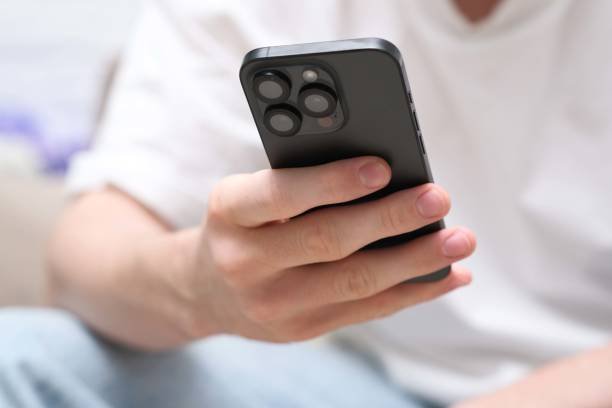
How to Change Your Voice on iPhone: A Comprehensive Guide
Changing your voice on an iPhone, whether for fun, creative projects, or anonymity, is entirely possible through various methods, primarily involving third-party applications and some clever uses of built-in features. While the iPhone doesn't come with a dedicated real-time voice changer feature out of the box, a plethora of apps and editing tools empower you to modify your vocal output for recordings, calls, and videos, offering a range of effects from deep monster voices to high-pitched chipmunk sounds.
Why Would You Want to Change Your Voice on iPhone?
There are numerous reasons why someone might want to alter their voice on an iPhone. Understanding these motivations can help you choose the right tools and techniques:
- Entertainment and Pranks: One of the most common reasons is simply for fun. Changing your voice can be hilarious for prank calls (ensure they are harmless and consensual) or funny voice messages to friends and family.
- Content Creation: For podcasters, YouTubers, TikTok creators, or anyone making digital content, voice modification can add character to narrations, create distinct personas, or generate unique sound effects. This is crucial for engaging audiences and enhancing storytelling.
- Anonymity and Privacy: In certain situations, individuals might wish to obscure their identity for privacy reasons, such as during interviews, reporting sensitive information, or engaging in online discussions where anonymity is desired.
- Creative Storytelling: Voice modulation can bring characters to life in audio dramas, video skits, or animated projects, allowing a single person to voice multiple roles convincingly.
- Learning and Speech Therapy: While less common for direct voice changing, some voice analysis and modification tools can be used in speech therapy to help individuals understand and adjust their vocal patterns.
Primary Methods to Change Your Voice on iPhone
To effectively change your voice on an iPhone, you'll primarily rely on software solutions. These can be broadly categorized into dedicated voice changer apps, video editing tools, and some limited uses of native iPhone functions.
1. Using Third-Party Voice Changer Apps (Recommended)
The most straightforward and feature-rich way to alter your voice is by downloading specialized voice changer apps for iPhone from the App Store. These apps often provide real-time effects or allow you to apply filters to pre-recorded audio.
How Voice Changer Apps Work:
Most voice changer apps function by capturing your voice through the iPhone's microphone and then applying various digital signal processing algorithms to modify its pitch, timbre, tone, and speed. Some apps offer a wide array of preset voices (e.g., robot, alien, helium), while others allow for manual adjustments of parameters.
Popular Voice Changer Apps and Their Features:
- Voice Changer Plus: This is a highly-rated app known for its simplicity and wide range of effects. It allows you to record your voice and then apply dozens of different voices and sound effects. You can play your changed voice instantly, save recordings, and even share them. It's excellent for quick and fun transformations.
- Celebrity Voice Changer: While some apps claim to transform your voice into a celebrity's, be aware that many of these use advanced algorithms or even mimicry rather than true real-time transformation. This type of app is primarily for entertainment and may require subscriptions.
- Voicemod (Mobile): Voicemod is renowned on desktop for its real-time voice changing during gaming and streaming. Its mobile counterpart offers similar capabilities, often allowing you to use modified voices in various apps, though integration can vary by device and app. It typically features a vast library of voice filters and sound effects.
- Snapchat/TikTok (Built-in Filters): While not standalone voice changer apps, platforms like Snapchat and TikTok integrate voice-changing filters directly into their video recording functions. When you use certain face filters, they often come with a corresponding voice effect, offering a quick and easy way to add a funny voice to your short videos.
Steps to Use a Typical Voice Changer App:
- Download and Install: Search for "voice changer" or "voice effects" in the App Store and download an app with good reviews.
- Grant Microphone Access: The app will require permission to access your iPhone's microphone. Grant this permission.
- Record Your Voice: Open the app and tap the record button. Speak clearly into your iPhone's microphone.
- Apply Effects: After recording, the app will usually present a list of voice effects or sliders for pitch, reverb, echo, etc. Select your desired effect.
- Play, Save, or Share: Listen to the modified voice. If you're happy, you can often save it to your phone's library, share it via messaging apps, or export it to other applications.
Pro Tip: Look for apps that offer a good balance of free features and optional premium upgrades. Always read privacy policies, as some free apps might rely on data collection.
2. Using iPhone's Native Features (Limited Scope)
While the iPhone doesn't have a dedicated real-time voice changer, some built-in apps and accessibility features can be creatively used to alter the perception of a voice, primarily in post-production or for specific playback scenarios.
a) Voice Memos App for Post-Recording Speed Adjustment:
The native Voice Memos app allows you to record audio and then make some basic adjustments to its playback. While it doesn't offer pitch shifting directly, changing the playback speed can significantly alter how a voice sounds.
- Record a Voice Memo: Open the Voice Memos app and record your voice.
- Access Playback Options: Tap on the recorded memo, then tap the three-dot menu (ellipsis) or the settings icon (often represented by a speedometer or three lines with sliders).
- Adjust Playback Speed: You'll find a slider to adjust the playback speed. Moving it to the right makes your voice play faster and higher-pitched (like a chipmunk), while moving it to the left makes it slower and deeper.
- Save/Share: While you can't "save" this modified version directly as a new audio file within Voice Memos, you can screen record the playback or use the Share Sheet to send the original, and the recipient can also adjust playback speed. For a permanent altered file, you'd need to record the playback on another device or use a screen recording app that captures system audio.
Note: This method changes the playback speed and thus the perceived pitch, but it doesn't create a new, permanently altered audio file directly within the app.
b) Video Editing Apps (iMovie, Photos, CapCut, InShot):
If your goal is to change your voice within a video, the iPhone's built-in Photos app (for basic edits) or more robust free apps like iMovie (Apple's own), CapCut, or InShot are excellent choices. These apps allow you to modify the audio track of your video recordings.
- Record a Video: Use your iPhone's Camera app to record a video where you speak.
- Import to Editor: Open iMovie (or another video editor) and import your video clip.
- Edit Audio Track: Select the video clip, then look for audio editing options.
- Apply Voice Effects:
- iMovie: Tap the clip, then the speaker icon. You might find options for noise reduction or adjusting volume. For more advanced voice changes (pitch, reverb), you might need to detach the audio and then export it for processing in a dedicated audio app, then re-import. More recent versions of iMovie might offer some basic pitch or filter options.
- CapCut/InShot: These apps often have dedicated "Voice Effects" or "Voice Changer" tools within their audio editing sections. You can easily select your audio track and apply various presets like "Robot," "Monster," "Chipmunk," "Echo," and more. They are generally more user-friendly for direct voice manipulation in video.
- Export Video: Once satisfied, export your video with the modified voice.
This method is highly effective for content creators looking to enhance their video projects with unique vocal effects.
3. Using External Hardware or Accessories (Advanced)
For professional-grade real-time voice changing on iPhone, especially for live streaming or high-quality audio recordings, you might consider external hardware. These typically connect via the Lightning port or Bluetooth.
- External Audio Interfaces: Devices like the Rode AI-Micro or various portable mixers can connect to your iPhone. These interfaces often have their own DSP (Digital Signal Processing) capabilities or allow you to connect traditional microphones with built-in effects.
- Voice Changer Microphones/Headsets: Some gaming headsets or specialized microphones come with integrated voice changing capabilities that can be utilized when connected to an iPhone (though compatibility should be checked).
These options offer greater control and higher audio fidelity but come with additional cost and complexity, making them suitable for dedicated enthusiasts or professionals.
Tips for Effective Voice Changing on iPhone
To get the best results when trying to modify your voice on iPhone, consider these tips:
- Experiment with Apps: Don't settle for the first app you try. Download a few highly-rated free options to compare their effects, ease of use, and overall quality.
- Record in a Quiet Environment: Background noise can interfere with voice changing algorithms, leading to less natural or distorted results. Find a quiet space for recording.
- Speak Clearly: Articulate your words clearly. The clearer the original audio input, the better the voice changer can process and transform it.
- Adjust Parameters: Many apps offer sliders for pitch, tone, reverb, and echo. Play around with these settings to create custom voices beyond the presets.
- Consider the Context: A chipmunk voice might be great for a prank, but a subtle deep voice effect might be more appropriate for character narration in a serious project. Tailor your voice change to its intended use.
- Check for Real-Time Capability: If you need to change your voice during a live call or stream, ensure the app specifically supports real-time voice modification across other applications, which is a more advanced feature.
Potential Use Cases for Voice Alteration on iPhone
The ability to alter your voice on an iPhone opens up a world of creative and practical possibilities:
| Use Case | Description | Recommended Tools/Approach |
|---|---|---|
| Comedy & Pranks | Sending funny voice notes, making lighthearted prank calls, or creating humorous videos. | Voice Changer Plus, Snapchat/TikTok filters, dedicated prank call apps. |
| Podcasting & Audio Drama | Creating distinct character voices, adding atmospheric vocal effects, or narrating different roles. | Voicemod (for real-time desktop integration with iPhone input), professional audio editors on computer with iPhone audio import. |
| Video Content Creation | Adding unique vocalizations to YouTube videos, TikToks, Instagram Reels, or short films. | CapCut, InShot, iMovie (for post-production), apps with real-time filters for live streams. |
| Online Gaming | Modifying your voice during multiplayer gaming sessions for fun or anonymity. | Voicemod (often requires PC integration, less direct for iPhone-only gaming). |
| Storytelling & Role-Playing | Enhancing narrative experiences for children's stories or interactive role-playing games. | Any voice changer app with a variety of character presets. |
Limitations and Ethical Considerations
While voice changing is fun and useful, it's important to be aware of certain limitations and ethical guidelines:
- Real-time vs. Post-production: Most easy-to-use iPhone voice changers are designed for post-production (recording first, then applying effects). Real-time voice changing during live calls or online meetings is possible but often requires more advanced apps, specific integrations, or even external hardware, and can be less reliable.
- Audio Quality: Over-processing can sometimes degrade audio quality. Aim for natural-sounding changes unless intentional distortion is desired.
- Privacy and Permissions: Be cautious with third-party apps, especially free ones. Review their privacy policies to understand how they use your audio recordings and other data. Grant microphone access only to trusted apps.
- Ethical Use: Always use voice changers responsibly and ethically. Misleading or harassing others with a changed voice is unethical and potentially illegal. Ensure consent for prank calls or any situation where someone might be confused or distressed.
Conclusion
Changing your voice on an iPhone is an accessible and fun way to express creativity, enhance content, or simply enjoy a laugh with friends. While the iPhone lacks a native, real-time voice alteration feature, the robust ecosystem of third-party voice changer apps, coupled with the audio editing capabilities of video applications like CapCut and InShot, offers a wide spectrum of possibilities. By exploring different apps, understanding their features, and adhering to ethical considerations, you can master the art of voice modification on your iPhone and unlock new dimensions of audio expression.
Enjoyed this read?
Share it with your friends and colleagues.